What you'll learn - See persona, PBs, closet, and achievements at a glance on the profile main screen. - How PBs get detected automatically, and how the 240 achievements are structured. - Lesson schedules and notifications, plus the full settings list.
1. Where to open
Bottom tab Profile. ⚙️ opens Settings. (Re-tapping Profile may open Settings.)
Profile packs a lot into one screen, so this post walks through it top to bottom. If you're in a hurry, jump straight to the section you need — persona is #3, PBs are #5, achievements are #6, lessons and settings are #7–8.
2. Profile main
Cumulative stats — name, streak, total sessions, total distance — sit up top, followed by persona, PB, closet, and achievements summaries below.
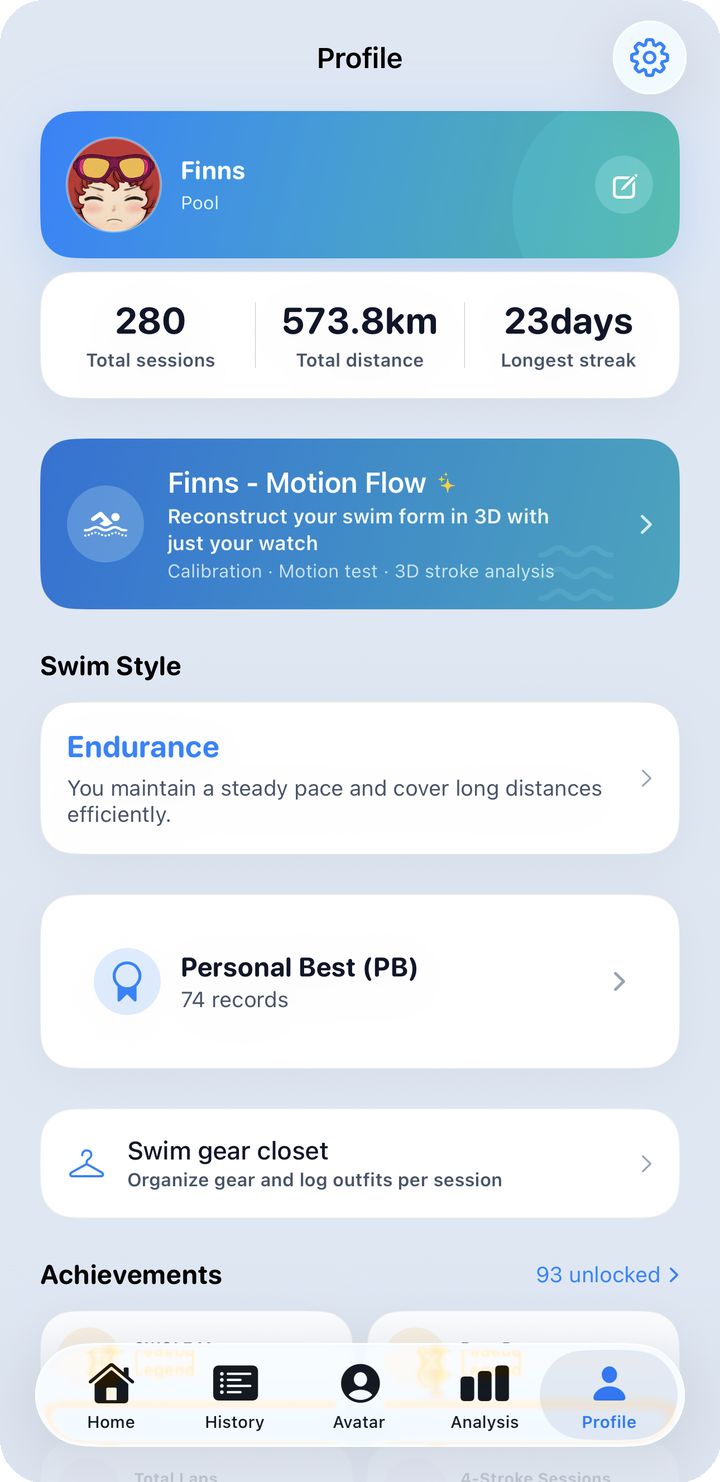
The top card is a quick summary of everything you've logged so far: total sessions, total distance, and your streak. Your home pool name shows as a subtitle under your name. For details on each individual workout, check the History tab.
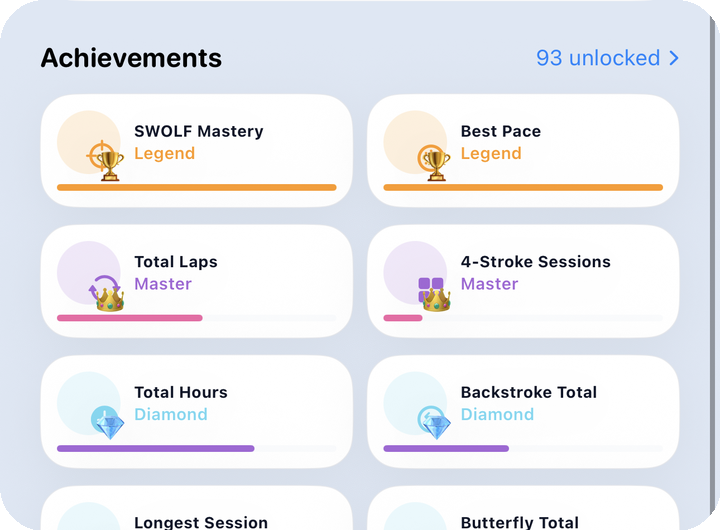
The achievements summary is a grid previewing up to 8 medals you've earned. It's a quick way to see how much is left to unlock. Tapping the persona, PB, closet, or achievements entries takes you straight to the detail screens covered below.
3. What your profile info is used for
There are only four things you can actually edit on your profile: name, home pool, weekly goals (distance, calories, sessions), and lesson schedule. You can set your home pool by ① searching the app's built-in pool directory by distance, ② searching the map, or ③ entering it manually — it then shows as the subtitle under your name.
There's no field for gender, age, or max heart rate (MaxHR). Instead, MaxHR is calculated automatically from the highest heart rate recorded across your HealthKit workouts (falls back to 185 if there's no history, and never drops below 160). That calculated value is what powers heart-rate zone analysis and the session timeline on the home screen.
Weekly goals (distance, calories, sessions) are numbers you set directly, so once they're filled in, other screens have something to measure this week's progress against. If you're not sure what to set for a first goal, it's worth glancing at your recent distance and session counts on the profile top card or History tab before picking a number.
Your name and home pool can be changed anytime from Profile edit, so update them whenever you move or switch pools to keep the subtitle current.
4. Swim persona
A persona card auto-classified from how you've been swimming recently. Tap it to open a sheet with the key metrics behind it and training tips.
The key metrics screen shows the numbers behind your persona classification.
Training tips suggest what to try next based on your current persona.
The bottom of the card carries extra notes related to your current persona.
5. Personal bests (PB)
PBs are your best time for each stroke × distance combo. Distances run 25/50/75/100/200/400/500/1000/1500/2000/3000m; strokes cover freestyle, backstroke, breaststroke, and butterfly, plus IM (individual medley) 100m and 200m, auto-detected from laps that follow the fly → back → breast → free order. All 11 distances are tracked at once, from short sprints to long endurance sets, so there's nothing extra to log — just swim with your watch on and the app catches the record.
Records are picked up automatically from your watch data, filtered by a few checks to weed out false positives. Times that are physically implausible for a given distance are dropped (for example, anything under 42 seconds for 100m or under 800 seconds for 1500m), and short distances (25–100m) are cross-checked against nearby attempts around the same time, so an isolated one-off doesn't slip through as a PB.
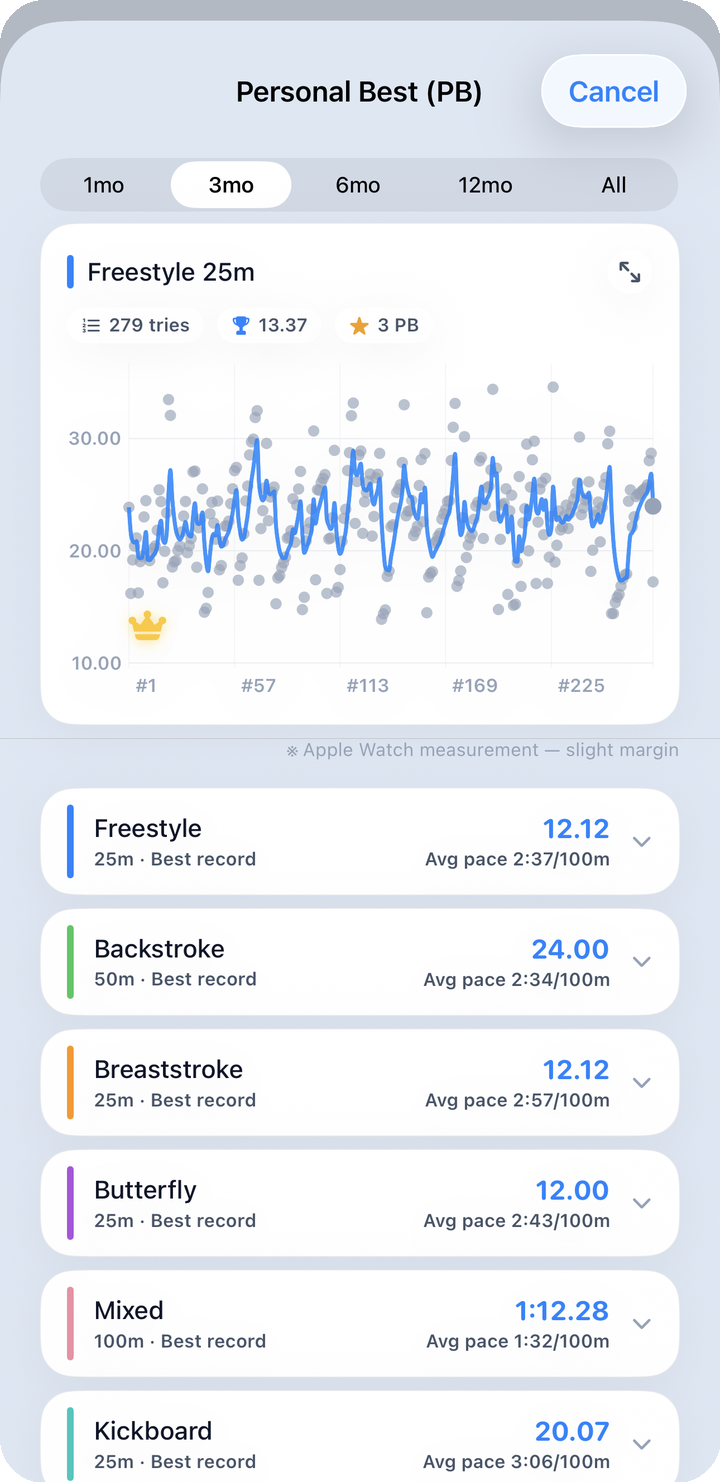
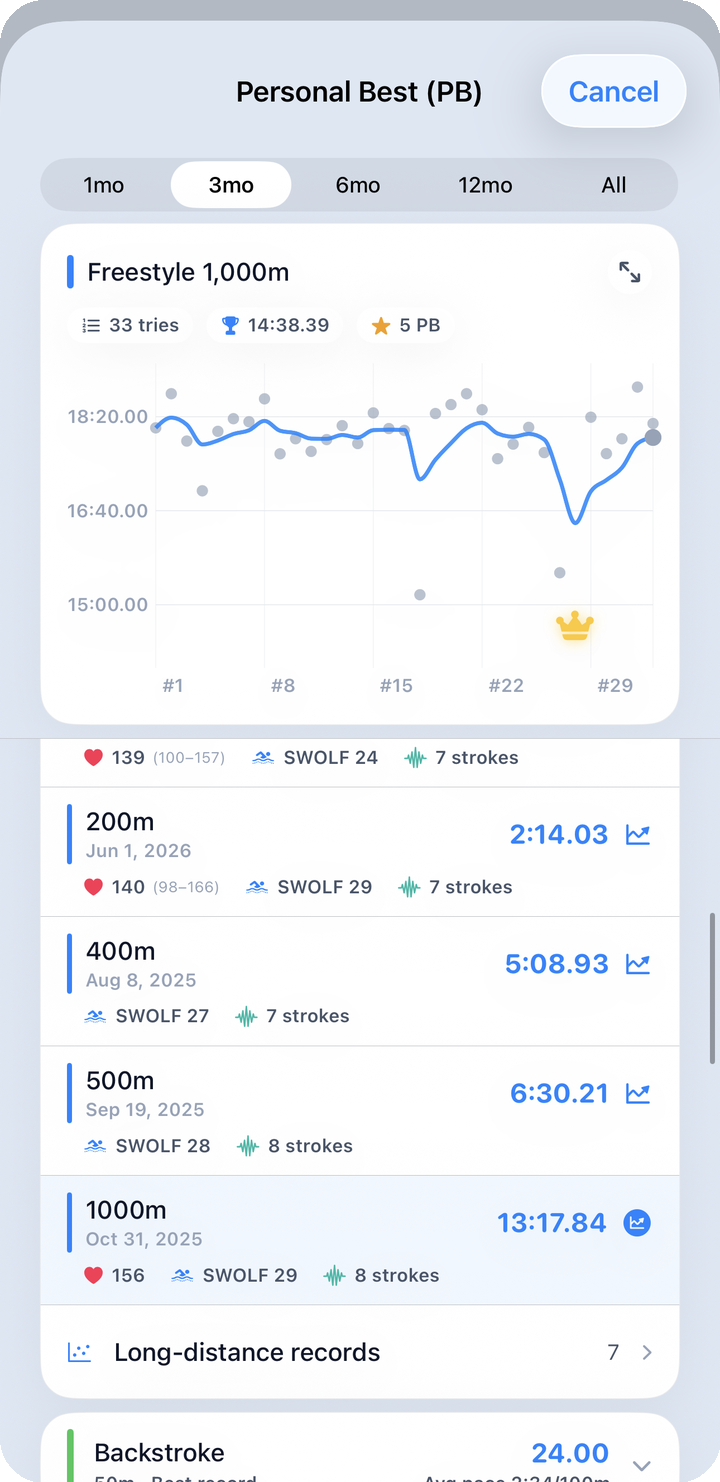
Switch the stroke tab to see backstroke, breaststroke, butterfly, and IM the same way. IM isn't something you pick when logging a swim — whenever the app spots laps that run fly → back → breast → free in that order, it automatically counts that stretch as an IM attempt, so there's nothing extra you need to do.
Tap a stroke × distance combo to see a scatter plot of every attempt with a trend line, with gold/silver/bronze markers at each point where you set a new PB. Pinch to zoom the chart to full screen.
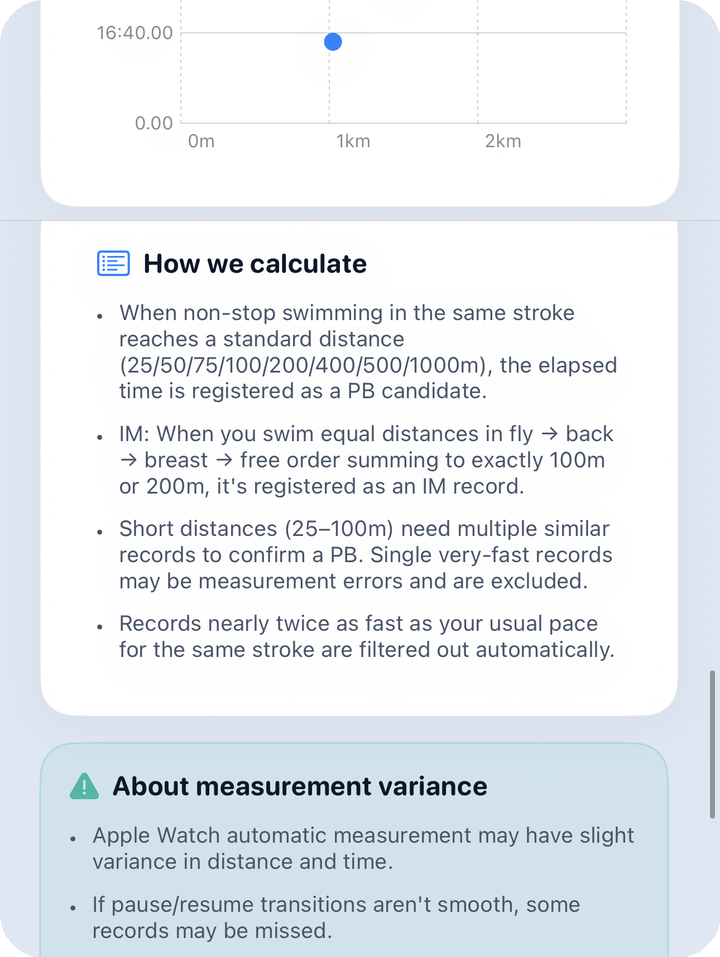
The "how we calculate" note lays out the criteria behind PB detection. For short lap-level segments, it also checks things like stroke density and the segment's peak heart rate, catching cases where the watch briefly misread a spike.
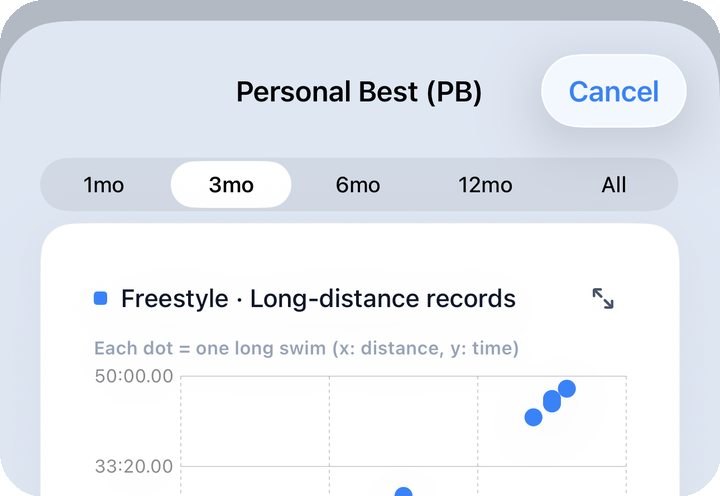
Long-distance records — a continuous, non-stop segment over 1000m — are shown separately.
Watch measurement error may be noted on screen.
If a time looks suspiciously good — or suspiciously off — it's worth reading that note first, then making sure the watch is fitted properly before your next session and re-measuring.
6. Achievements 240
No separate Achievements tab. Profile achievements area → See more for the full sheet.
The structure is 30 categories × 8 tiers (Bronze, Silver, Gold, Platinum, Diamond, Master, Grandmaster, Legend) = 240. The 30 categories fall into seven broad groups.
| Group | What it covers |
|---|---|
| Single-session distance | Distance swum in one session, per stroke + overall |
| Cumulative distance | Total distance logged so far, per stroke + overall |
| Session activity | Session count, swim time, streak, total laps |
| Period maxes | Daily / weekly / monthly / yearly maxes |
| Performance metrics | Best pace, SWOLF, longest session, highest calories |
| Time-of-day counts | Dawn, lunch, and night swim counts |
| Variety | Lesson attendance, IM sessions, sessions covering all 4 strokes |
The 8 tiers, in order, are shown as 🥉 Bronze · 🥈 Silver · 🥇 Gold · 🛡 Platinum · 💎 Diamond · 👑 Master · 🌟 Grandmaster · 🏆 Legend. Expanding a category card shows the exact numeric threshold for each of these 8 tiers. Outlier sessions over 25km are excluded from max-value achievements, so one freak entry doesn't skew a tier.
7. Lessons · edit
Profile edit covers your name, home pool, weekly goals (distance, calories, sessions), and lesson schedule, all on one screen.
The top of this screen adjusts your weekly goal numbers; the bottom is where you add a new lesson or edit an existing one. A lesson is set up with day(s) of the week (multiple allowed), start time, duration (15–120 minutes), and whether it repeats weekly or biweekly. There's no field for an instructor's name. If the day or time changes, there's no need to start over — just open the existing lesson and update the values.
With notifications on, you get a local notification every week at a chosen point before the lesson — 15, 30, 45, or 60 minutes ahead — and you can toggle notifications per lesson. If you have several lessons registered, the count of lessons with notifications on shows next to the list. Biweekly lessons don't support notifications, though (a note appears on screen).
Separately, there's also a one-time notification 30 minutes after a workout ends, prompting a quick condition check. It's independent of lesson notifications, so turning lesson alerts off doesn't affect it — the post-workout notification has its own toggle in Settings.
8. Settings
The Settings sheet, opened via ⚙️, gathers everything from display and units to notifications and data sync in one place.
| Group | Items |
|---|---|
| Display | Appearance mode (system/light/dark), distance unit (meters m / yards yd), text size in 4 steps (small/normal/large/extra large) |
| Language | System auto-detect + 10 real languages (Korean, English, Japanese, Simplified Chinese, French, German, Spanish, Italian, Portuguese (BR), Dutch) |
| Data sync | HealthKit data sync (can be re-synced), how much history feeds analysis (1/3/5/10 years/all), auto-merge sensor gaps toggle |
| Notifications | Swim lesson notifications (master toggle + timing + per-lesson list), post-workout notification |
| Screen setup | Swim gear registration & logging toggle (turns the closet/outfit features on or off entirely), hide avatar menu, show Share tab |
| Other | Replay tutorial, restore hidden workouts, Instagram and blog shortcuts, app version display |
Turning on the swim gear registration & logging toggle brings up the features covered in Gear closet.
If you don't need avatar screens, hide avatar menu removes the tab entirely. Flip the same toggle back off later if you want it again.
Changing the language shows a note that says "restart the app to apply everywhere." Some screens update immediately, but a restart makes sure it's applied consistently across the whole app.
Settings screenshots live in Getting Started and are referenced from FAQ (#182 · #183). (We do not repeat those numbers in this post.)
Profile isn't a screen you'll open every day, but it's the right place to update a goal, adjust a lesson time, or check how many PBs you've set this month. Everything else builds up naturally as you keep using the app.
Next: FAQ