What you'll learn - Register the gear you own as photos and organize it in the closet. - Save the combo you wore each day as an outfit card, with angles adjusted to sit naturally. - Browse past outfits at a glance on the calendar.
1. Where to open
- Profile → Swim gear closet
- History → Calendar → My swim gear (if outfit display is on)
Turn on Swim gear registration & logging under Profile → Settings to bring up the closet and outfit features. If you want to see the settings screen first, check Getting Started.
2. Why use the closet
The closet is a photo diary of your swim gear — which cap, goggles, and suit you actually wore on a given day. Instead of digging through a bag every time, you get a quick visual list of what you own, and pairing it with day outfits later lets you see exactly what you had on when you set a given record.
There are 4 categories: cap, goggles, suit, and swim tools. Swim tools covers everything besides caps/goggles/suits — bag, long fins, short fins, paddles, kickboard, pull buoy, snorkel.
The category home shows how many items you've registered in each of the 4 categories, with an Add Photo button to register a new one.
Opening a category lists your registered items as thumbnails. Suits are tagged by gender (male / female / unspecified), with male suits further split into brief, square-leg, and jammer; caps split into silicone (flat) and mesh.
Goggles come in regular or mask-style, and swim tools cover the 7 types above. Each item can hold up to 3 photos, with one marked as the main photo (★).
3. Registering an item
New items go through this order:
- Pick a photo — from your photo library, not the camera. If you open the sheet with no photo picked yet, the library picker opens automatically after a moment.
- Choose category and sub-type — pick cap / goggles / suit / swim tools, then set the category-specific details like gender, material, or type.
- Choose how the photo is processed — Auto Cutout or Original Photo. Auto Cutout removes the background on-device (the same approach as Apple Photos' "Lift Subject"), and automatically falls back to the original photo if it fails.
- Fit it inside the dashed silhouette guide — on the preview screen, drag and pinch the photo to fit inside the dashed shape.
- Save — saved with the background kept transparent.
Shooting on a flat, contrasting background from directly above gives the cleanest auto-cutout result.
4. Day outfits
Save the combo you wore on a given day as a card. You can only make one outfit card per day, with 4 slots: cap, goggles, suit, swim tools (a partial outfit that skips some slots is fine).
In the edit sheet you drag each item freely across the card, and where they overlap you reorder them with the layer order (top = front). Each item can be angled along 3 axes.
| Control | Direction | Step |
|---|---|---|
| Rotate | spin flat | 5° steps |
| Tilt | lean left/right (±80°) | 5° steps |
| Up/down | lean up/down (±80°) | 5° steps |
Tapping an angle's number resets it to 0 instantly. If yesterday has an outfit, Copy yesterday brings over just the item selection (angles and background aren't copied), and the Note (optional) field lets you jot a short memo for the day. Card backgrounds default to a plain color (none), or you can pick from 10 image backgrounds.
5. On the calendar
Pick a date on the History tab calendar and that day's outfit card appears below; tap it to jump straight into the edit sheet. The closet's "Edit recent session outfit" shortcut jumps to your most recent workout day so you can finish that outfit right away.
6. Bonus: turn it into avatar wear
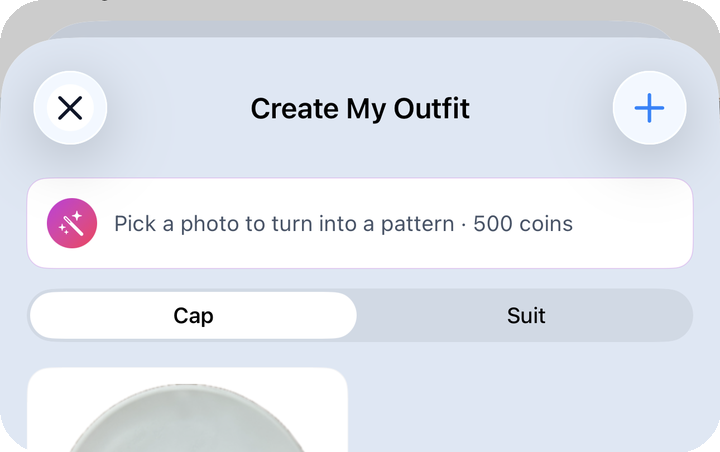
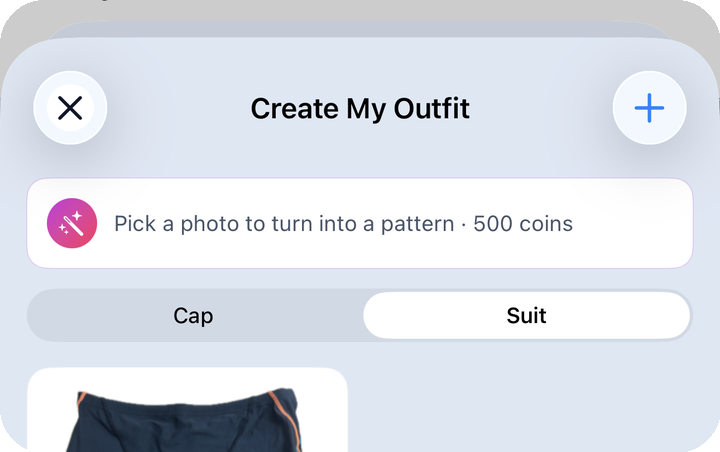
Photos of real items in your closet can also become patterns for your avatar's virtual clothing. Long-press an item and choose "Turn this pattern into avatar clothing" from the menu — it costs 500 coins — then pick a silhouette design and adjust the photo's position, scale (pinch, 0.2×–3.0×), and background color to finish the pattern. Cap designs also let you set an oblique tilt (0–80°).
If you want to see more of the virtual wardrobe your avatar wears, check out the Avatar post too.