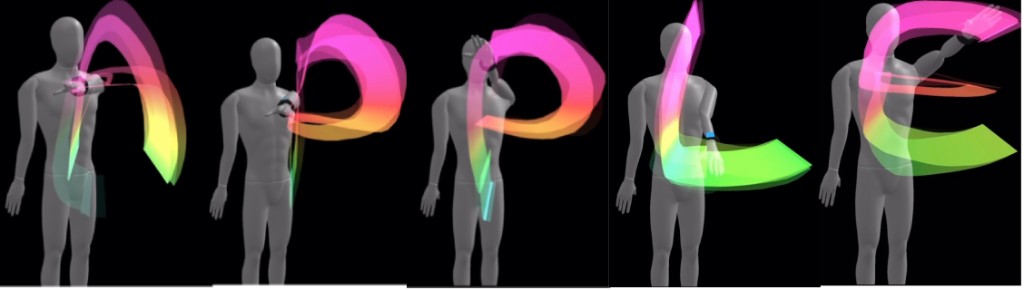
One Apple Watch. 'APPLE' written in the air becomes a 3D trace. If a wrist sensor is this precise, it can draw your underwater stroke too. That is Finns - Motion Flow.
In three lines - Finns - Motion Flow uses one Apple Watch wrist sensor for arm orientation, palm rotation, and stroke timing, then rebuilds your stroke as a 3D animation. - Four steps: ① calibrate (~5 min standing) → ② motion test (optional) → ③ swim → ④ play in 3D. After setup, just tap Start Swim on the watch. - It is an honest wrist-based reconstruction: measured values (forearm, palm, timing) and estimated ones (elbow, other arm, legs) are clearly separated.
1. Why — your watch only tells you "how much"
Most swim apps report distance, laps, pace, and heart rate — "how much" you swam. But when you want to improve, the real questions are different.
- What path does my hand take through the water?
- After the catch, does my arm drift wide or press down?
- Are my left and right strokes symmetric?
Until now this took a coach on deck or underwater video. Finns - Motion Flow does that job with the Apple Watch already on your wrist. No extra hardware.
Made for you if…
- you swim alone and want to check your own form
- you wonder about left–right balance, catch timing, stroke consistency
- you want to see your movement, not just count it
2. The hub at a glance — and a demo you can try first
Everything starts from the Finns - Motion Flow card on the Profile tab. The status strip on top tracks your setup — watch app → calibration (left/right wrist) → data (swim sessions) — and a "Next up" card points to the next step. Motion tests, recent swim analyses, and four guides (calibration prep & check, how to swim, reading your data) all live here.
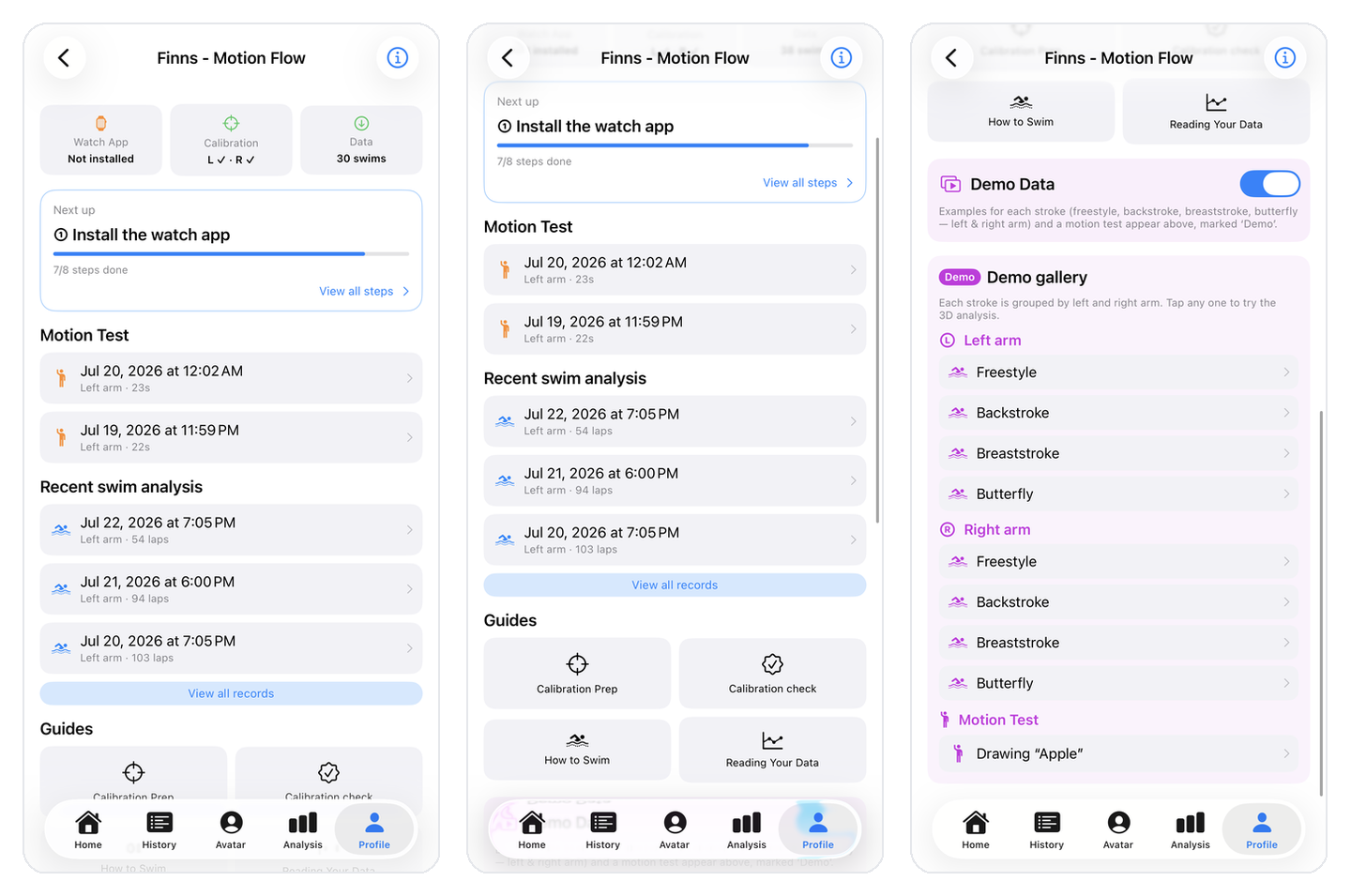
No watch yet? You can still try it. Turn on Demo Data in the hub and a demo gallery appears — every stroke (freestyle, backstroke, breaststroke, butterfly) × left/right arm, plus the 'Apple drawing' motion test. Tap any of them to explore the full 3D analysis before you calibrate.
3. STEP 1. Calibration — 5 minutes standing, "registering your arm"
The most important step. The app calls it "not a workout — registering your arm."
- Install FinnsWatch on your Apple Watch and wear it on your usual swimming wrist.
- Enter your height and arm length (shoulder–wrist).
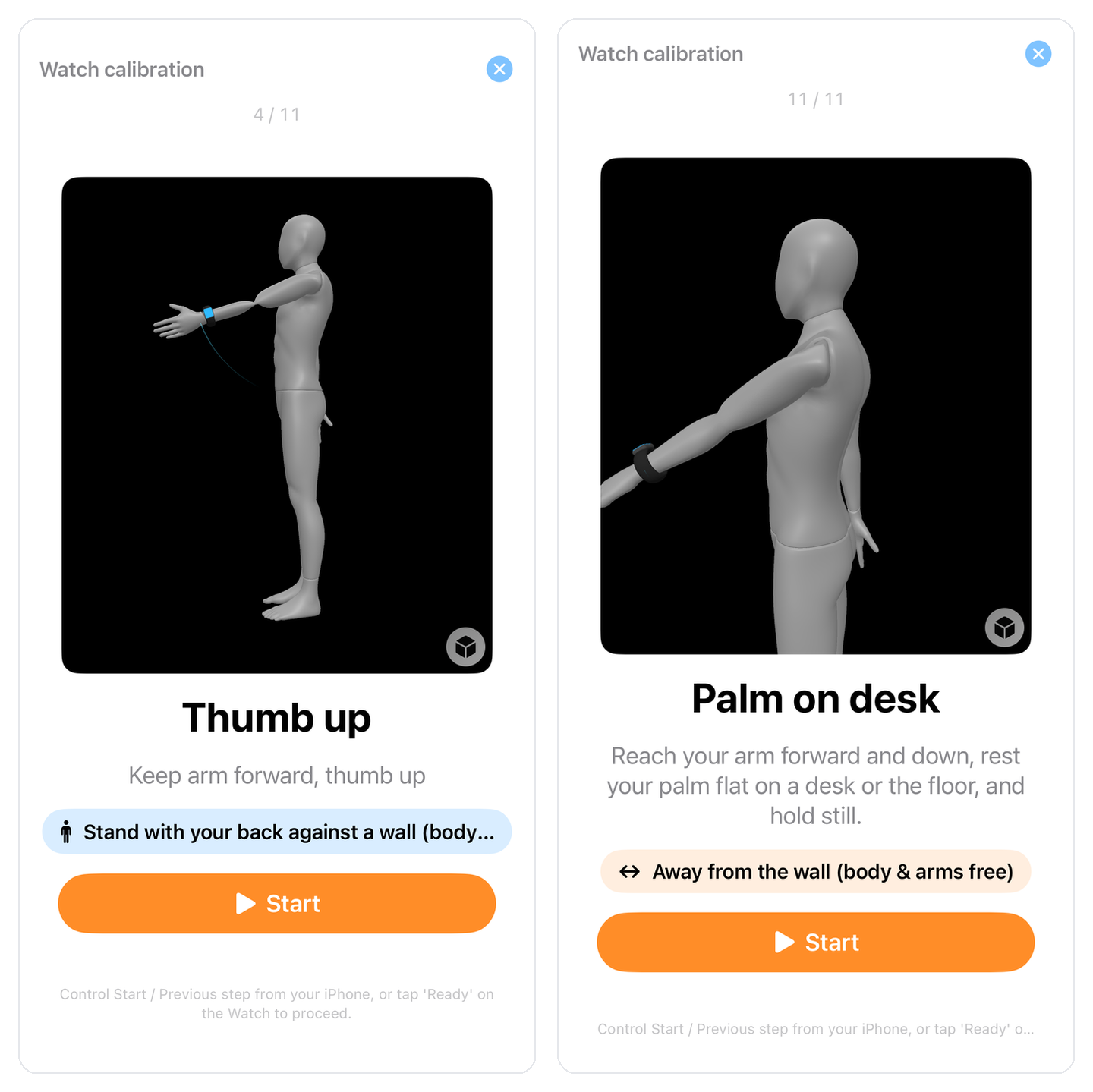
- Follow the guide through 11 poses — arms at sides, forward, palm up, thumb up, up, range of motion, rolling, air swim, elbow 90°, elbow fold, palm on desk.
- The whole thing takes about 5 minutes, standing.
For every pose, a 3D avatar demonstrates the target position first on your iPhone — just copy it.
Check, then redo only what's weak
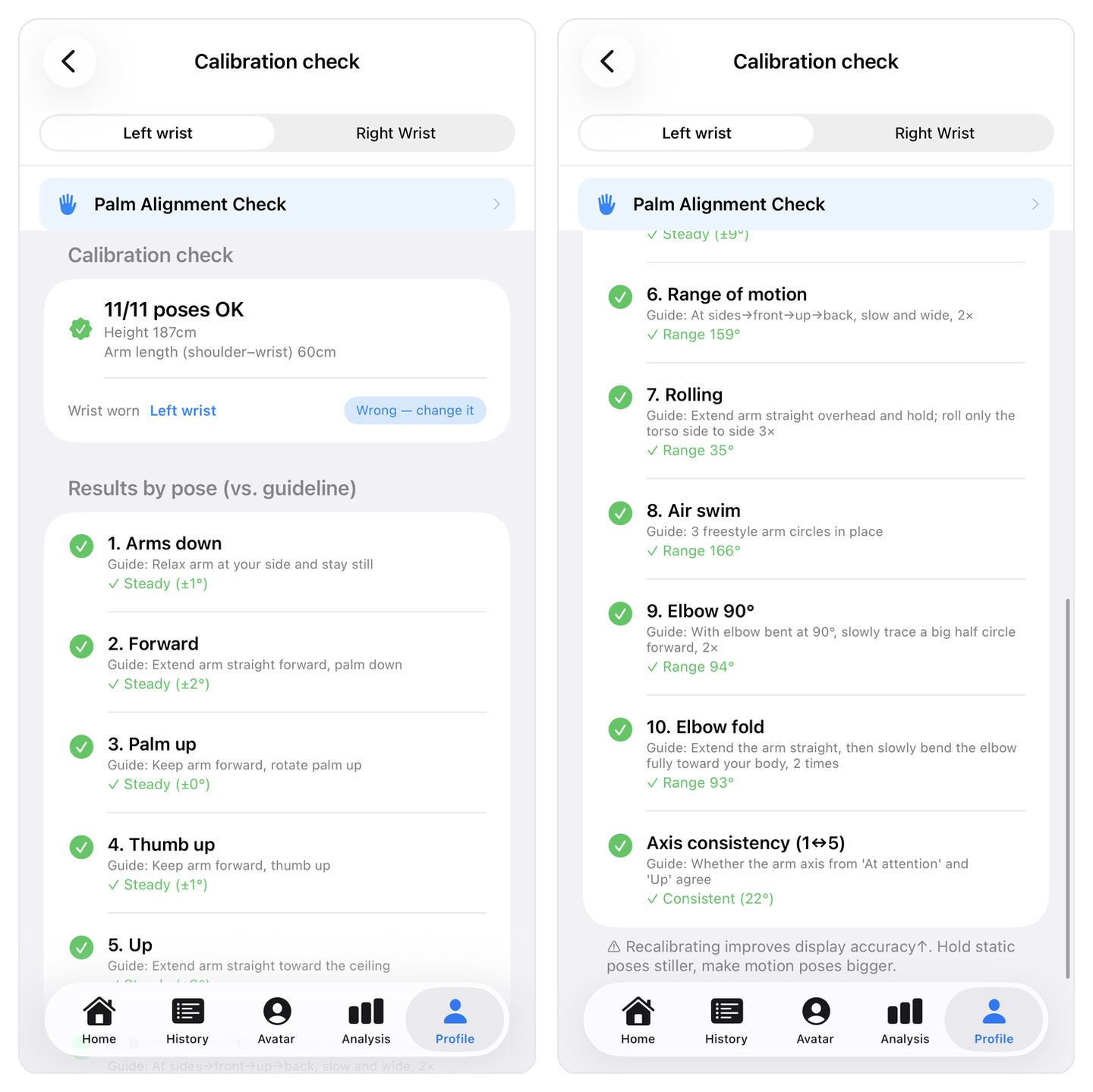
After calibrating, the Calibration check screen scores all 11 poses against guidelines — angle error, steadiness, even axis consistency. Left and right wrists have separate tabs, and any weak pose can be re-measured on its own.
Palm Alignment Check — verified with real swim data
Inside the calibration check, Palm Alignment Check verifies your palm direction against actual stroke data and shows a before/after 3D comparison. When it says "Palm alignment looks good," you're ready.
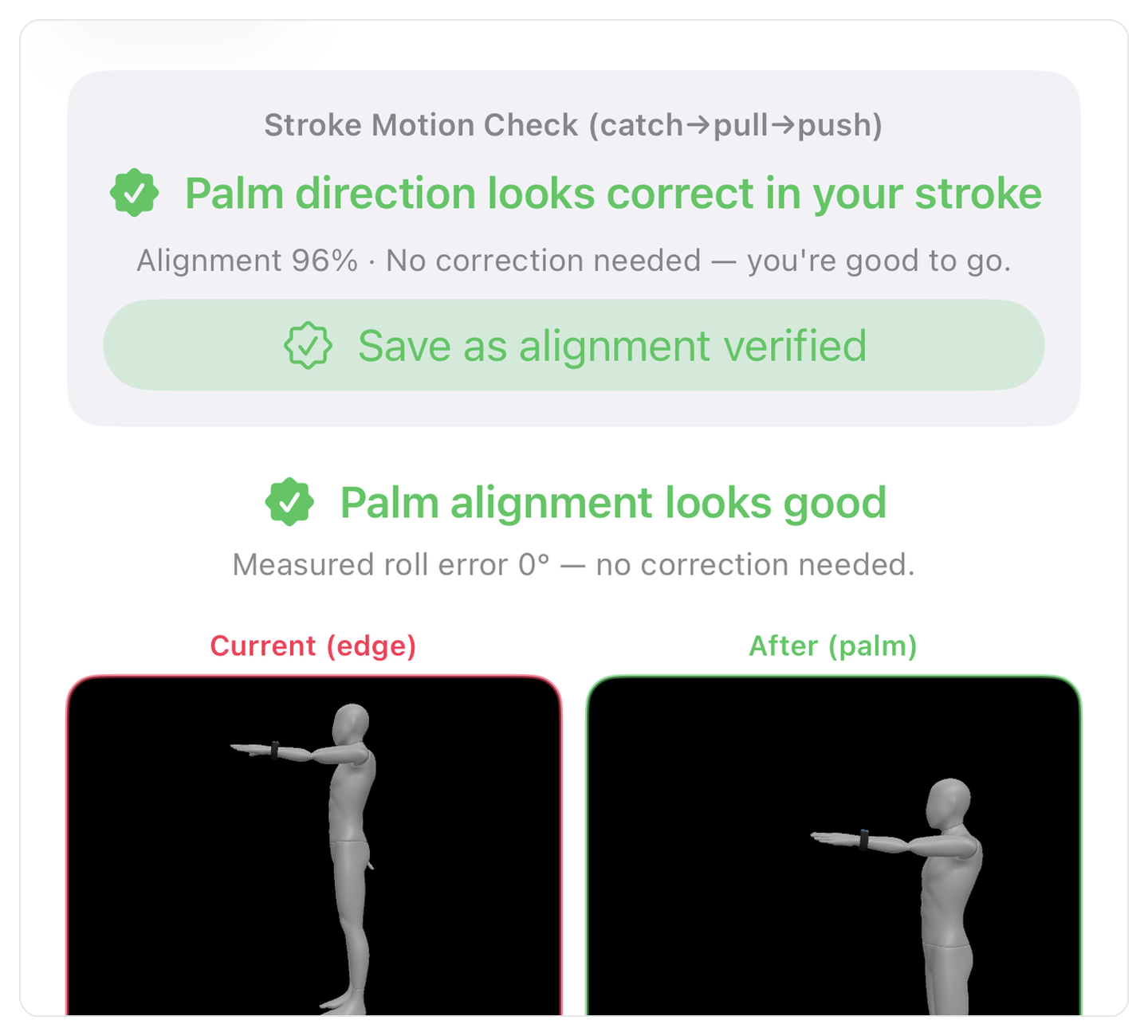
Good to know. Calibration is stored per wrist. Swim with the watch on your left wrist and it uses the left-wrist calibration — and every record is labeled left/right arm.
4. STEP 2. Motion Test — try it dry, before you swim (optional, recommended)
The 'APPLE' trace at the top of this page is this feature. It's a short dry run — arms circling in place with the watch on. Not required, but do it once: the 3D replay leaves a colored ribbon wherever your arm goes, and you'll immediately feel how precise the measurement is.
5. STEP 3. Swim, then receive your data
Once set up, it couldn't be simpler.
- Pick your lane length in Finns on the watch.
- Tap Start Swim and swim as usual — form-analysis recording runs automatically for the entire swim.
- Afterwards, keep the watch and iPhone apps open together and the data transfers over.
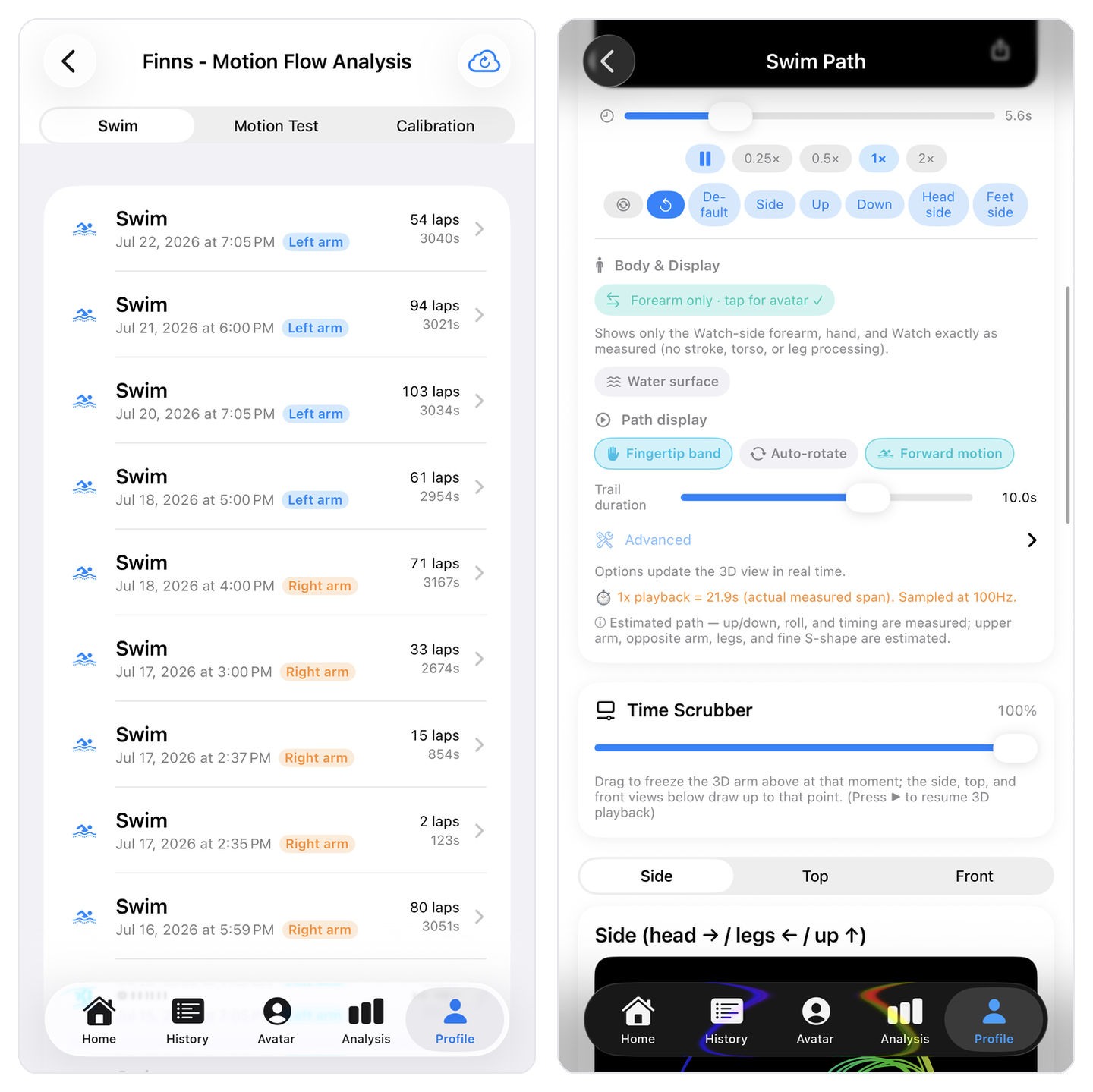
Records are grouped into Swim / Motion Test / Calibration, each labeled with the measured wrist (left/right arm) and lap count.
6. The Apple Watch app — what your wrist sees
The watch app records your swim workout while auto-collecting IMU data (the inertial sensor that captures wrist acceleration and rotation), then sends the file to your iPhone.
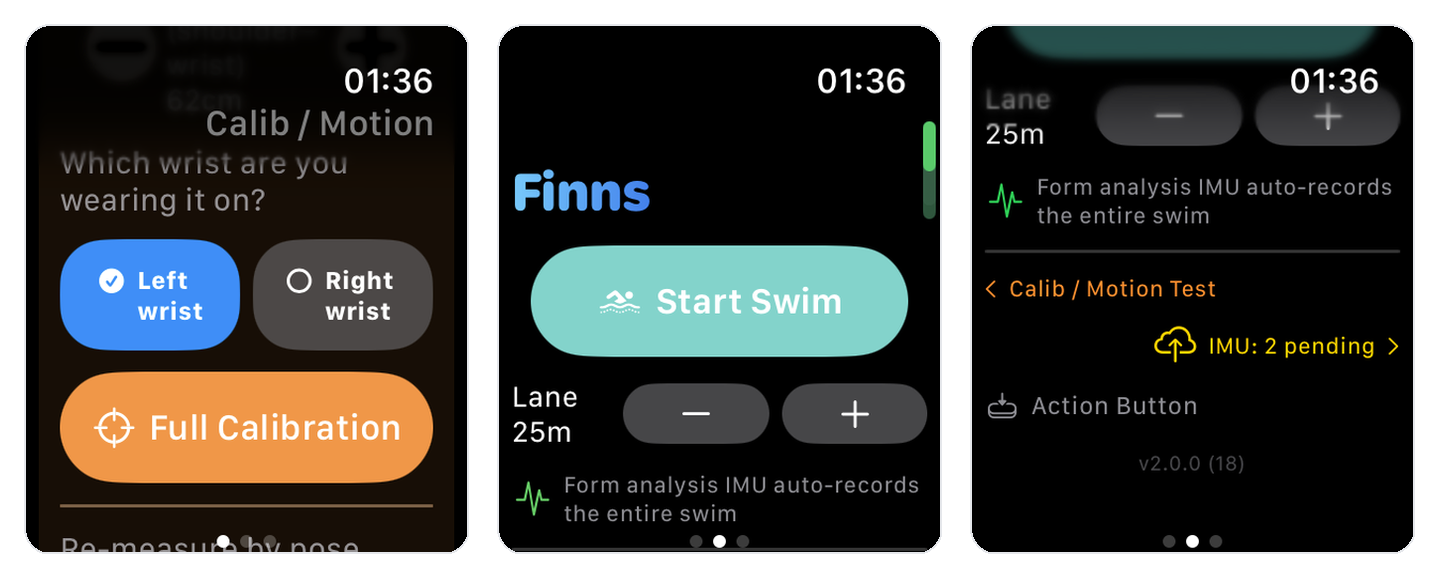
On first launch you choose which wrist you wear it on. The main screen has Start Swim and lane length (−/+); scrolling down reveals Calib / Motion Test, IMU transfer status, and Action Button / Siri shortcuts.
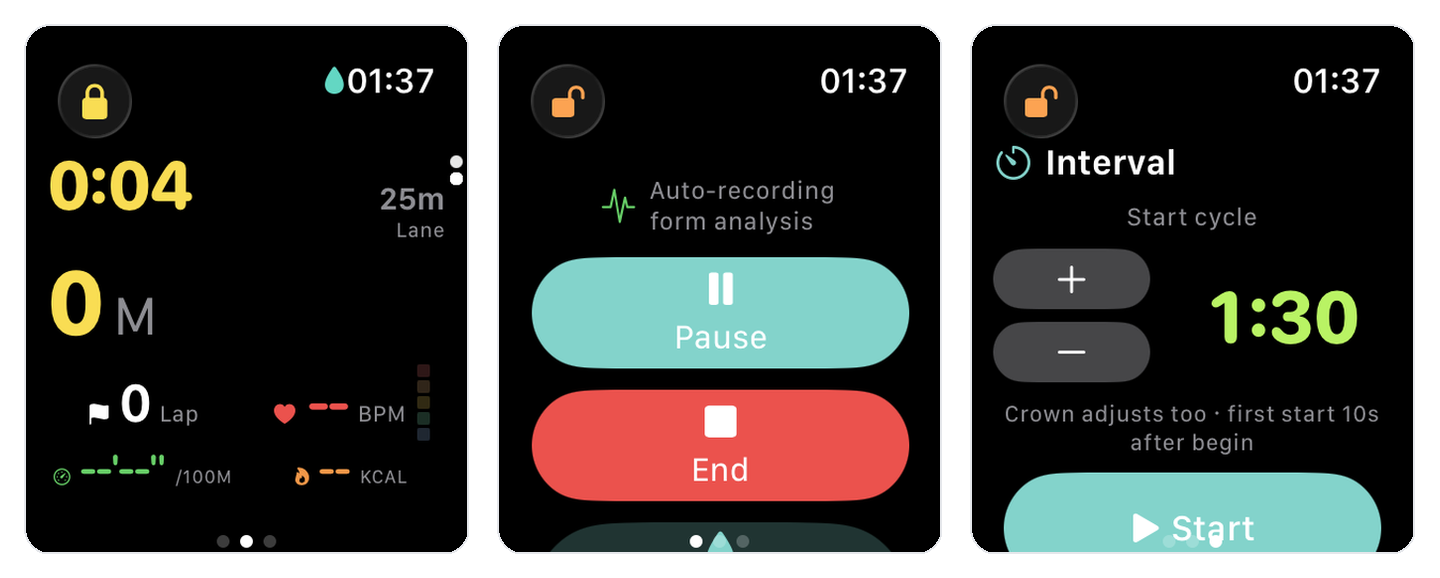
While swimming, elapsed time, distance, laps, heart rate, pace, and calories fit on one screen. There's a pause/end control and an interval timer you can adjust with the crown.
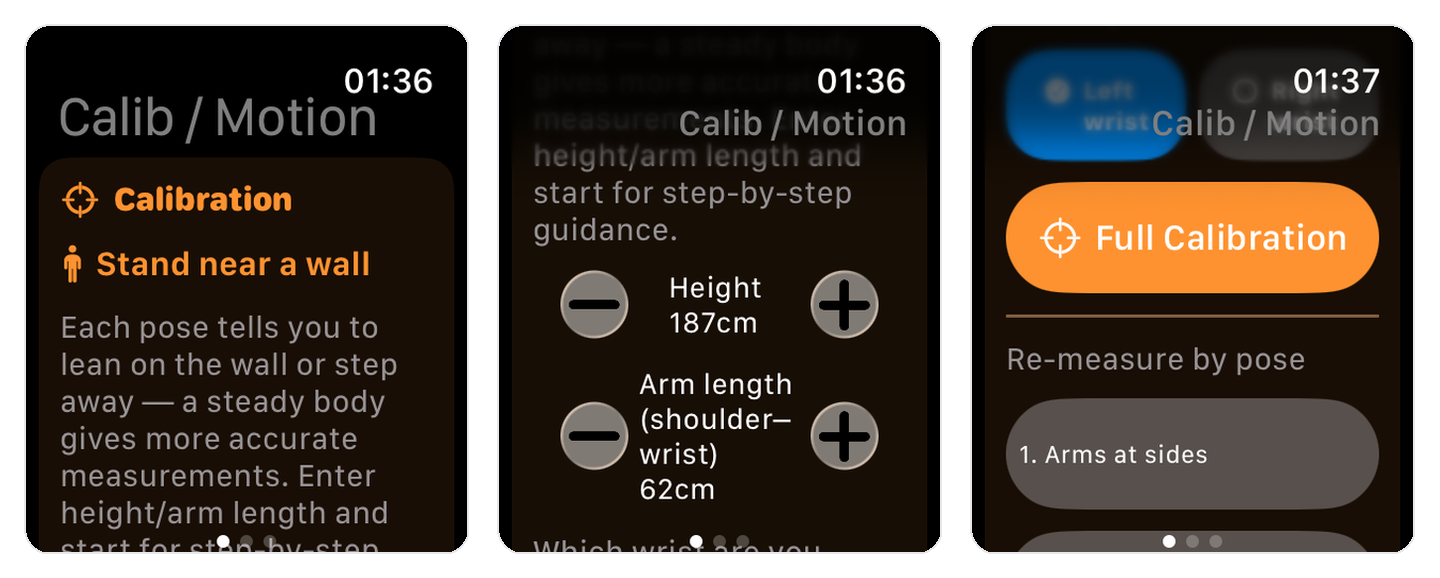
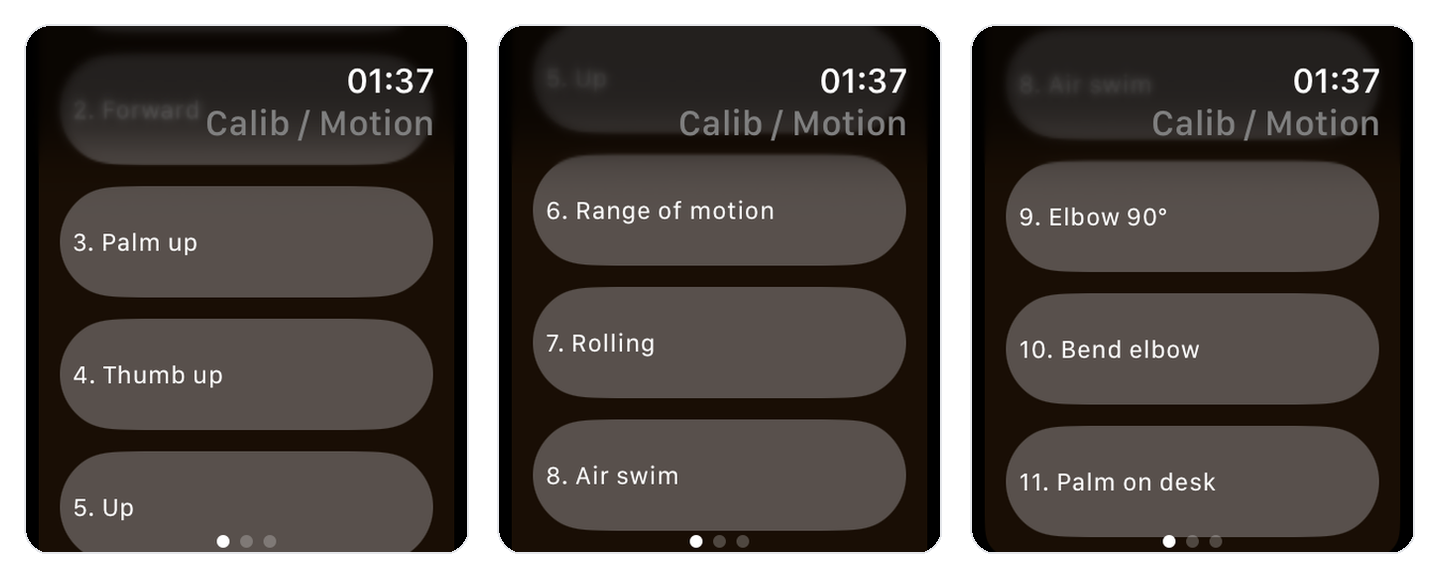
Calibration happens standing near a wall. Run the Full Calibration, or pick a single pose from the list to redo.
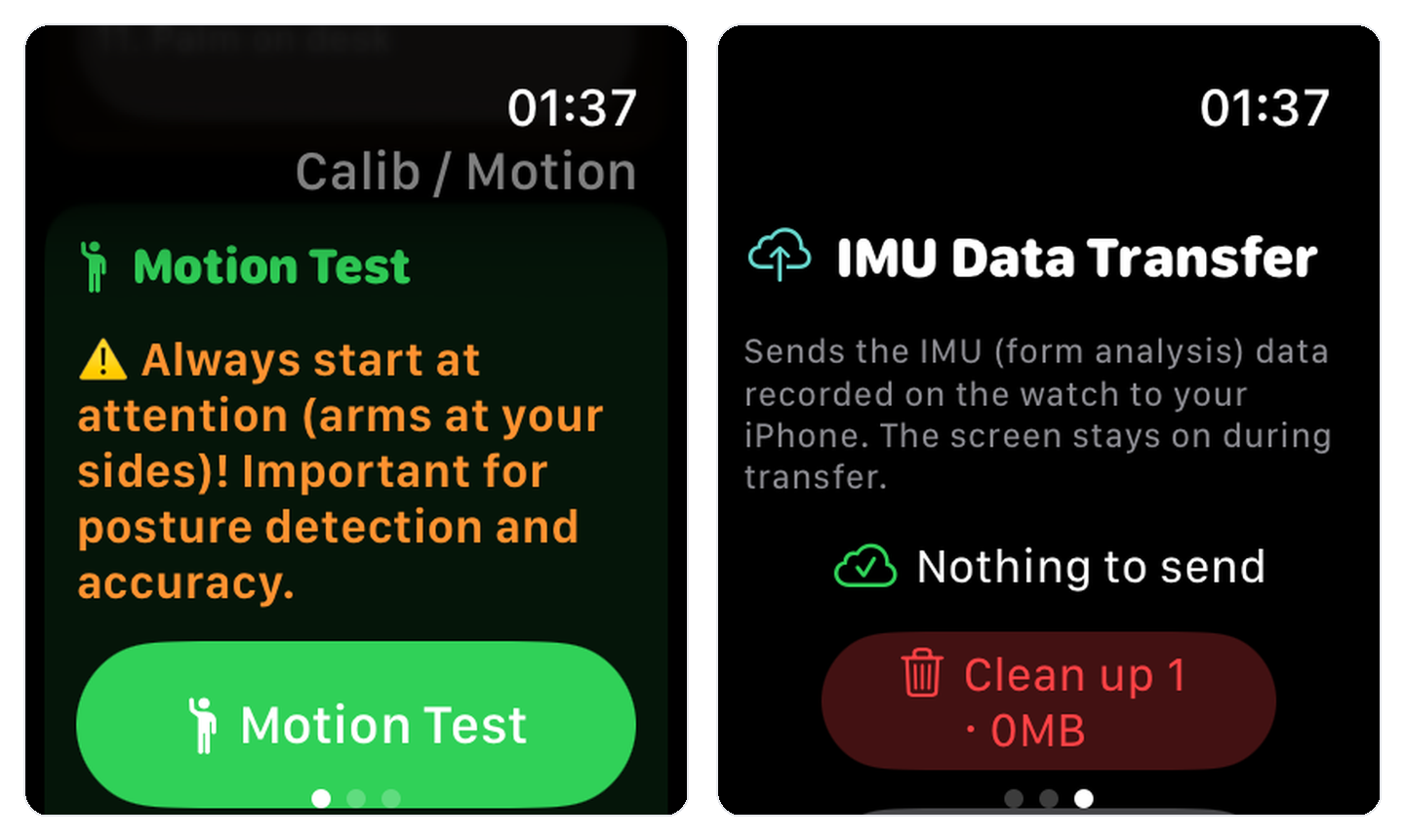
A motion test must start at attention (arms at your sides) — the first seconds anchor how everything after is interpreted. The transfer screen shows "Nothing to send" when you're done, with a Clean up option for sent files.
7. STEP 4. Play it in 3D — what to look for
Open a record, pick a segment (stroke and laps), and the 3D trace plays.
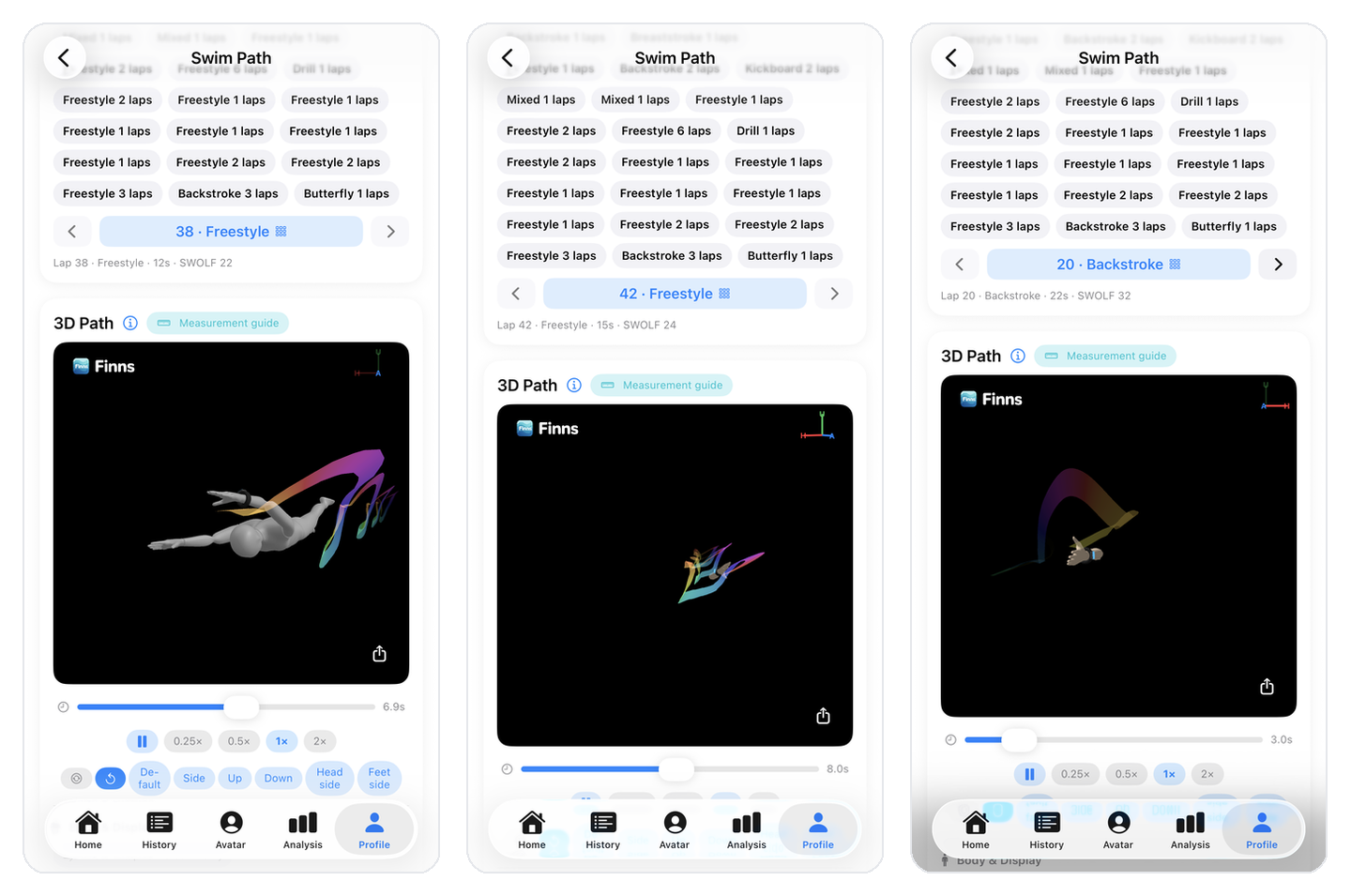
- Playback speed — 0.25× / 0.5× / 1× / 2×
- Views — default, side, up, down, head-side, feet-side presets, plus drag to rotate
- Display options — forearm-only / full avatar, body, water surface, fingertip trail, auto-rotate
- Time scrubber — freeze any instant and read the side/top/front paths together
Swim tip. Watch whether the ribbon wraps smoothly through the catch, or breaks and slips.
8. 2D paths and Group view — every lap, overlaid
Overlay all laps of a segment in three 2D views — side (head→legs→up), top, front — and stroke consistency jumps out at you. Color encodes stroke progress (entry → catch → pull → recovery).
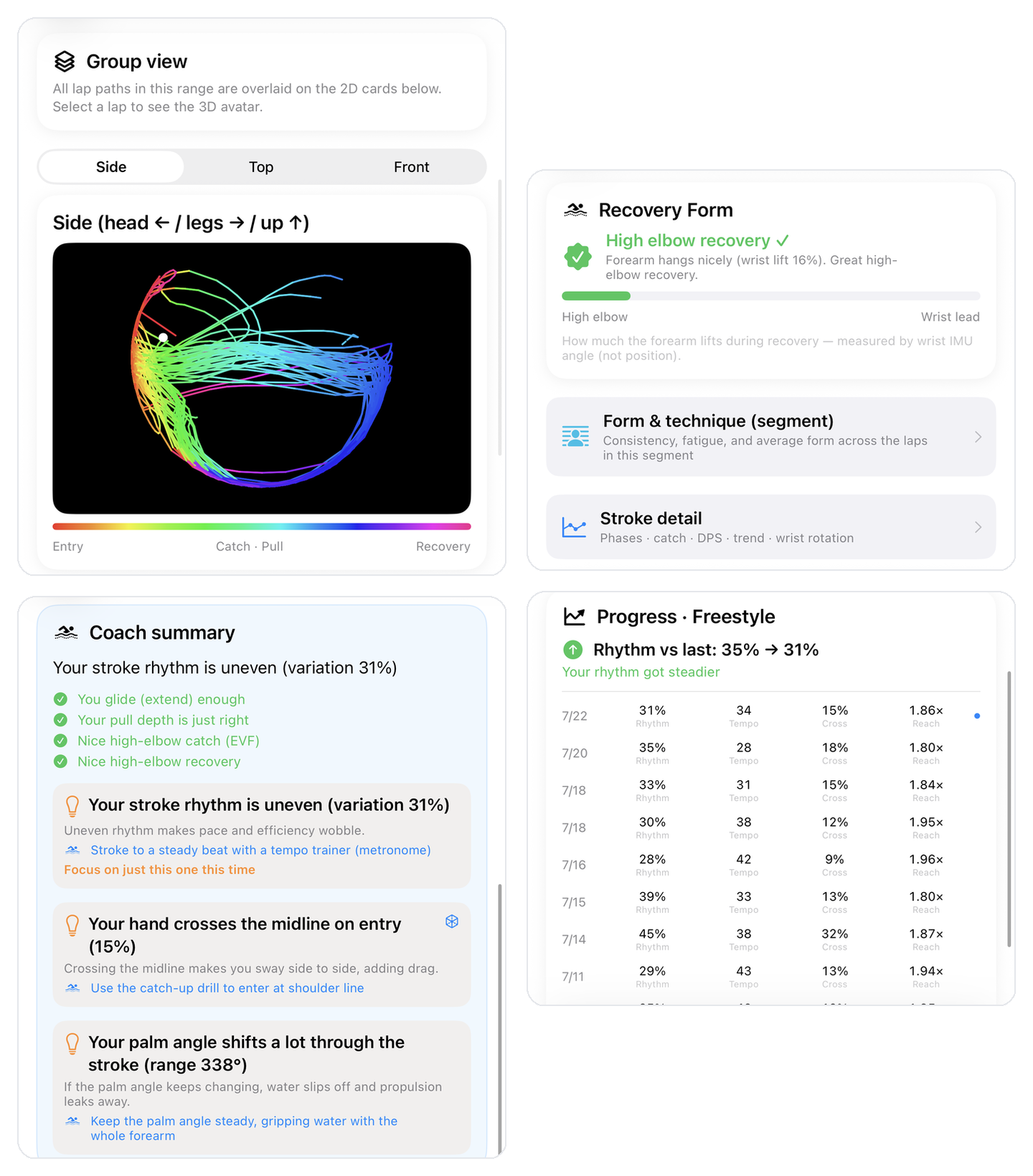
Below, the Coach summary turns it into sentences: rhythm variation, what you do well, and what to work on.
9. Form Analysis — technique, per segment
Open a multi-lap segment and Form Analysis reads your technique along with lap consistency.
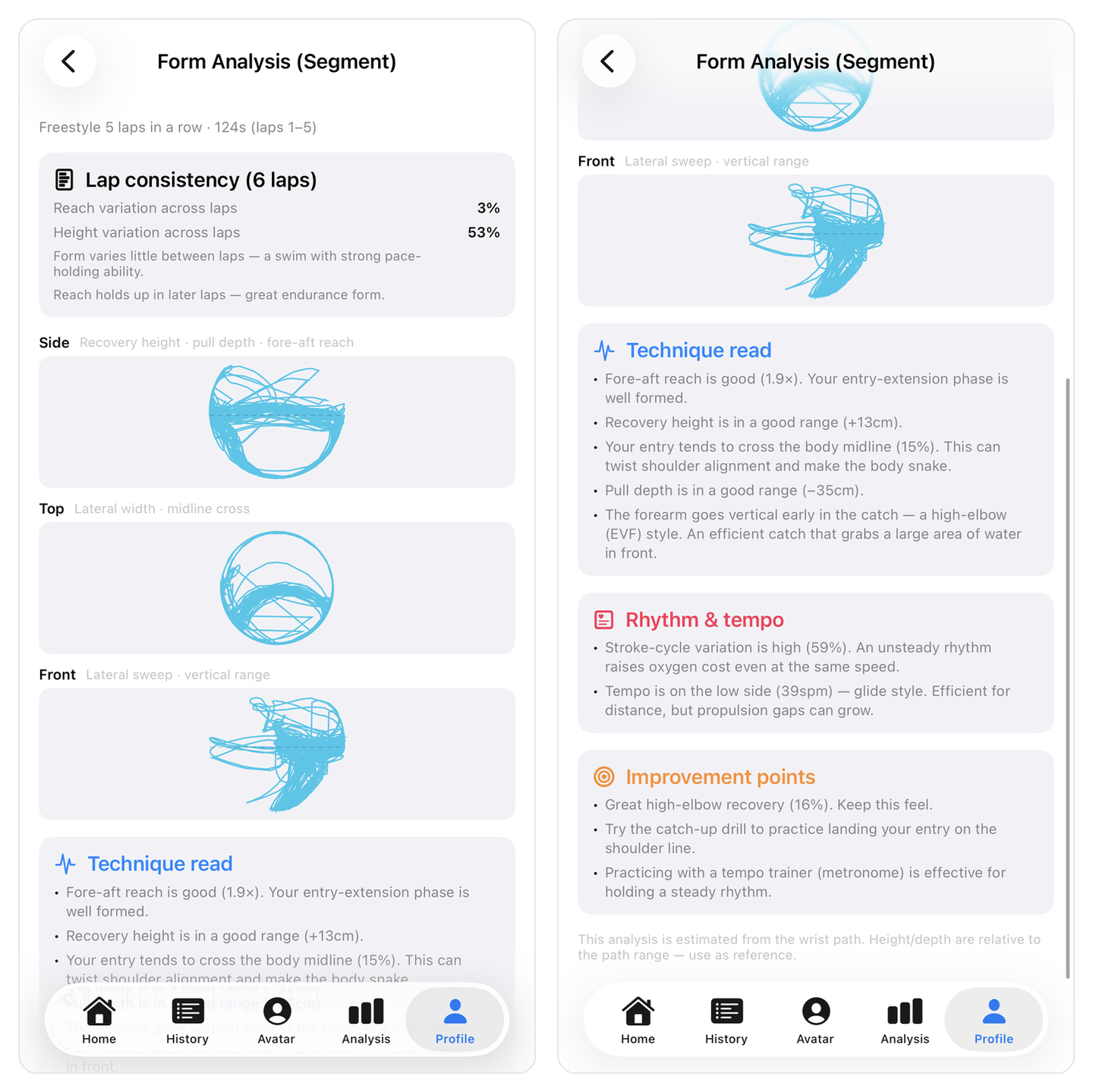
- Technique read — fore-aft reach, recovery height, midline crossing on entry, high-elbow (EVF) vs straight-arm style detection
- Rhythm & tempo — stroke-cycle variation (lower = steadier) and average tempo
- Improvement points — concrete drills that follow from the diagnosis (tempo trainer, catch-up drill, …)
10. Stroke Analysis — one lap, phase by phase
Pick a single lap and Stroke Analysis breaks your average stroke into phases (catch → pull → push → recovery).
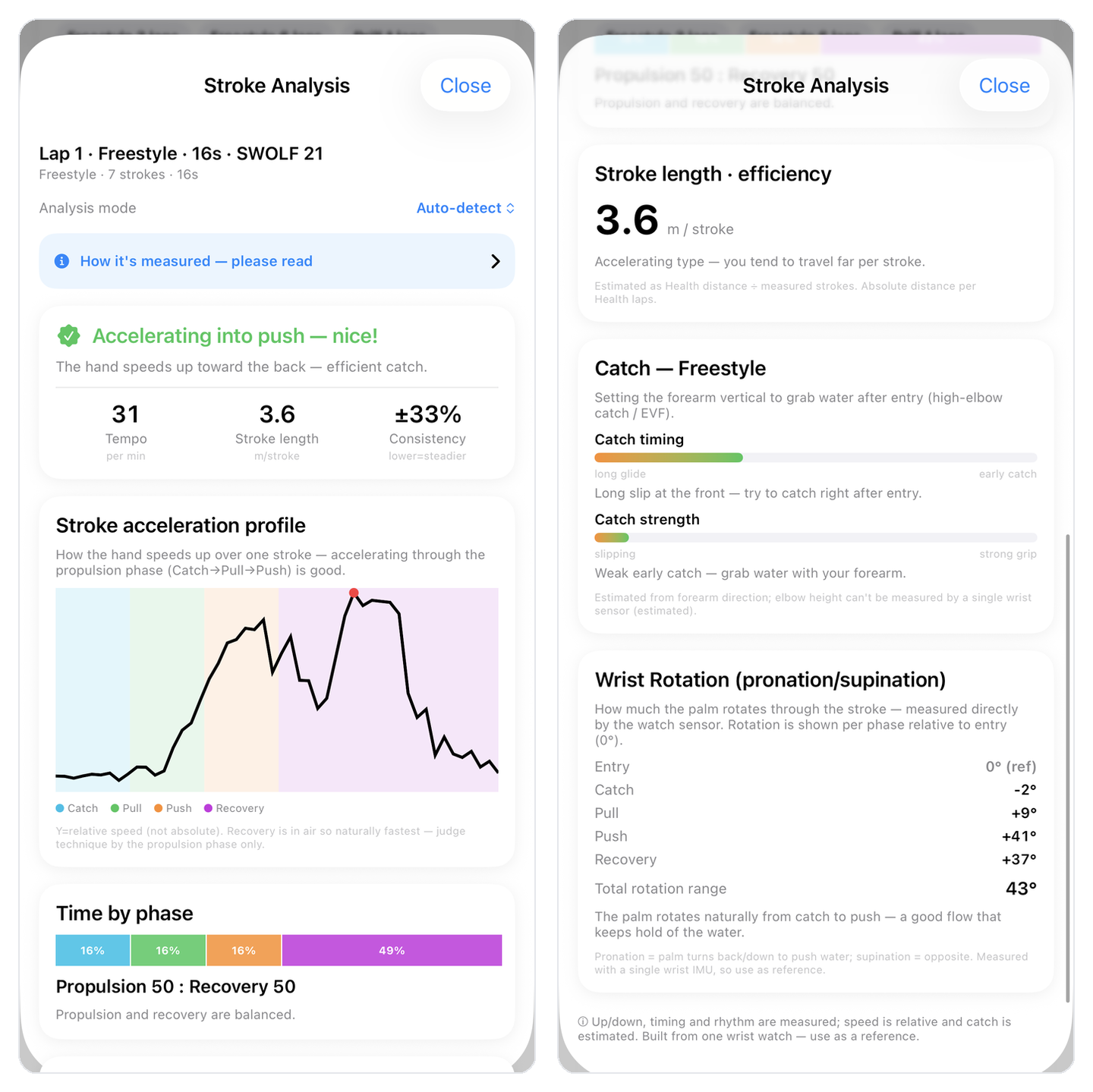
- Acceleration profile — speeding up through the propulsion phases (catch→push) signals an efficient catch; warnings flag things like mid-pull deceleration
- Time by phase — propulsion vs. recovery balance
- Stroke length & efficiency — distance per stroke (m/stroke)
- Catch timing & strength, wrist rotation (pronation/supination) — palm angle per phase and total rotation range
All of it is reference information, clearly labeled as wrist-based estimation.
11. Honest about what is measured — and what is estimated
The first time you open the 3D view, an accuracy notice comes first.
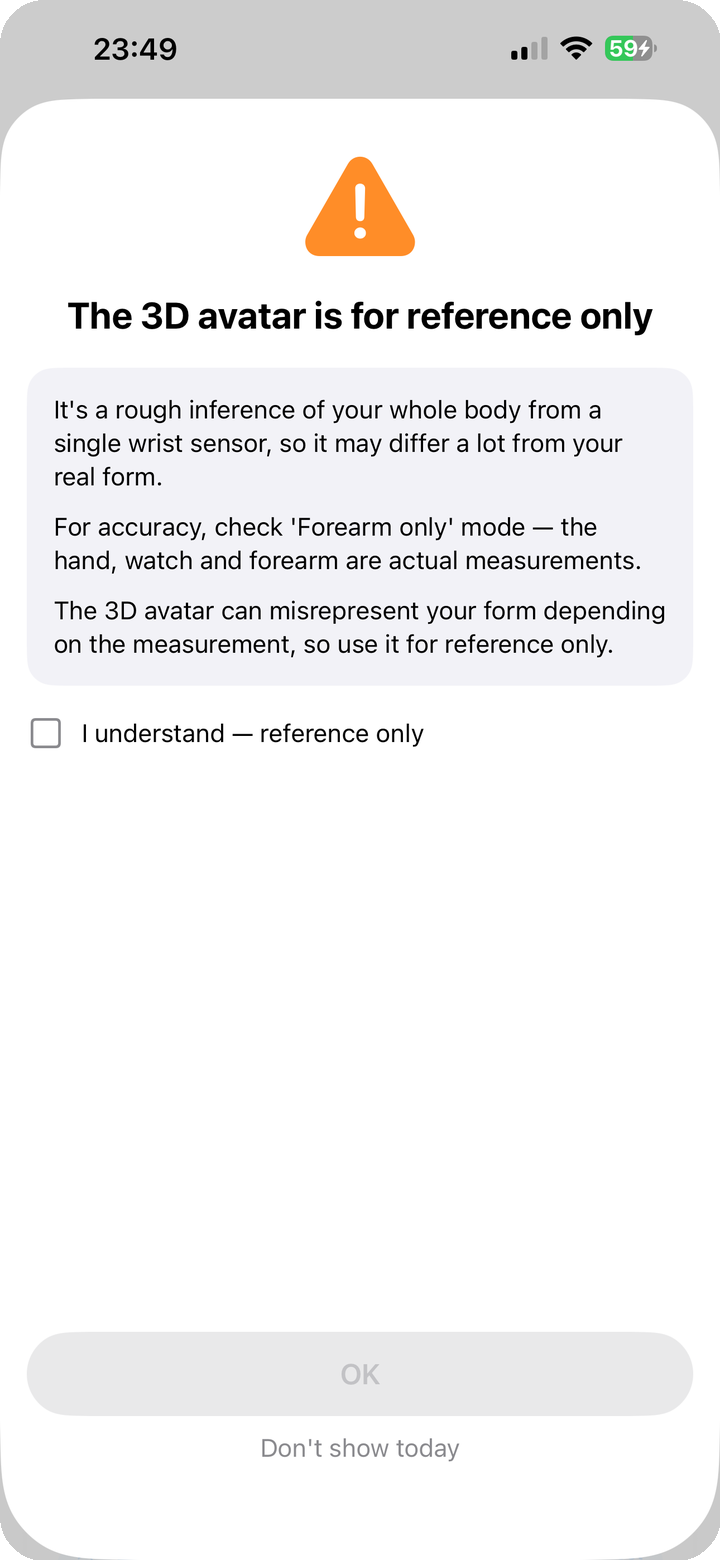
"This view is an estimated reconstruction from a single wrist-worn watch and may differ from your actual posture."
| Items | |
|---|---|
| ✅ Measured | forearm orientation, palm rotation, stroke timing & rhythm |
| ❓ Estimated | elbow bend, the other arm, legs, body roll |
For strict measurement use forearm-only; for a natural overall shape use the full avatar (reference). Everything is computed on-device, and your data stays local.
12. Closing
Checking your swim form used to require a coach or an underwater camera. Finns - Motion Flow lowers that bar to the Apple Watch already on your wrist. It isn't a perfect motion-capture rig — but five minutes of standing calibration, then swimming as usual, and your stroke plays back in 3D. That experience is genuinely new.
Beyond "how much" — to "how." No watch yet? Start with the demo gallery. Calibrated? Press play on your next swim.
Related: Profile · Getting Started · FAQ