What you'll learn - See every entry point into sharing at a glance. - Build a share card from a template and adjust color and stats. - Create a session video in 9:16 or 4:5. - Save and share weekly, monthly, and yearly reports, and edit their layout.
1. Where sharing starts
Finns SwimLog doesn't have a dedicated "Share" bottom tab. Instead, entry points into sharing are scattered across several screens. When you're starting out, these four groups are enough to remember.
| Entry point | Location | Opens |
|---|---|---|
| Home session card | Share icon on the session-graph header, Home tab | Session video share |
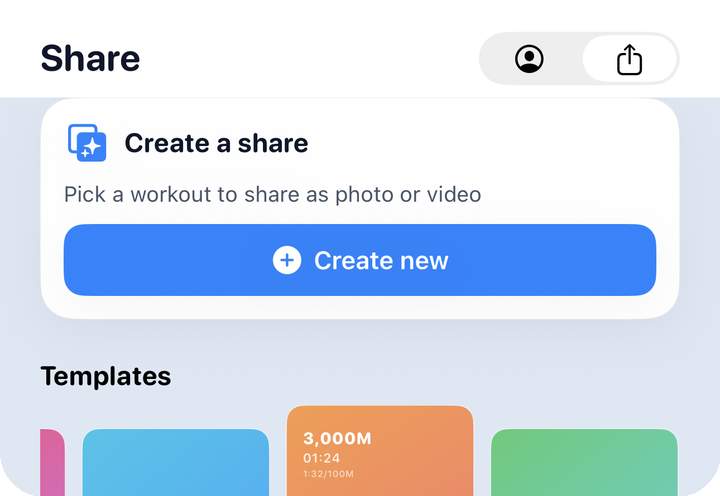
| Avatar tab top-right picker | Share segment, top-right of the Avatar tab | Share main (template gallery) |
| History | Long-press menu "Share" on a workout card, workout-detail toolbar/session graph, calendar "Report" button | Share card / session video / monthly report |
| Analysis report | "This week/month/year's report" chips | Weekly, monthly, yearly reports |
The one you'll use most is the Avatar tab top-right picker. Re-tap the Avatar tab, or pick Share from the top-right segment, and you land on the share main screen right away.
Which one should I use? Want to post today's swim as a styled card? Use a template. Want to show off lap-by-lap or heart-rate changes as you swam? Use session video. Want to sum up a week, month, or year? Use a report.
2. Templates · share cards
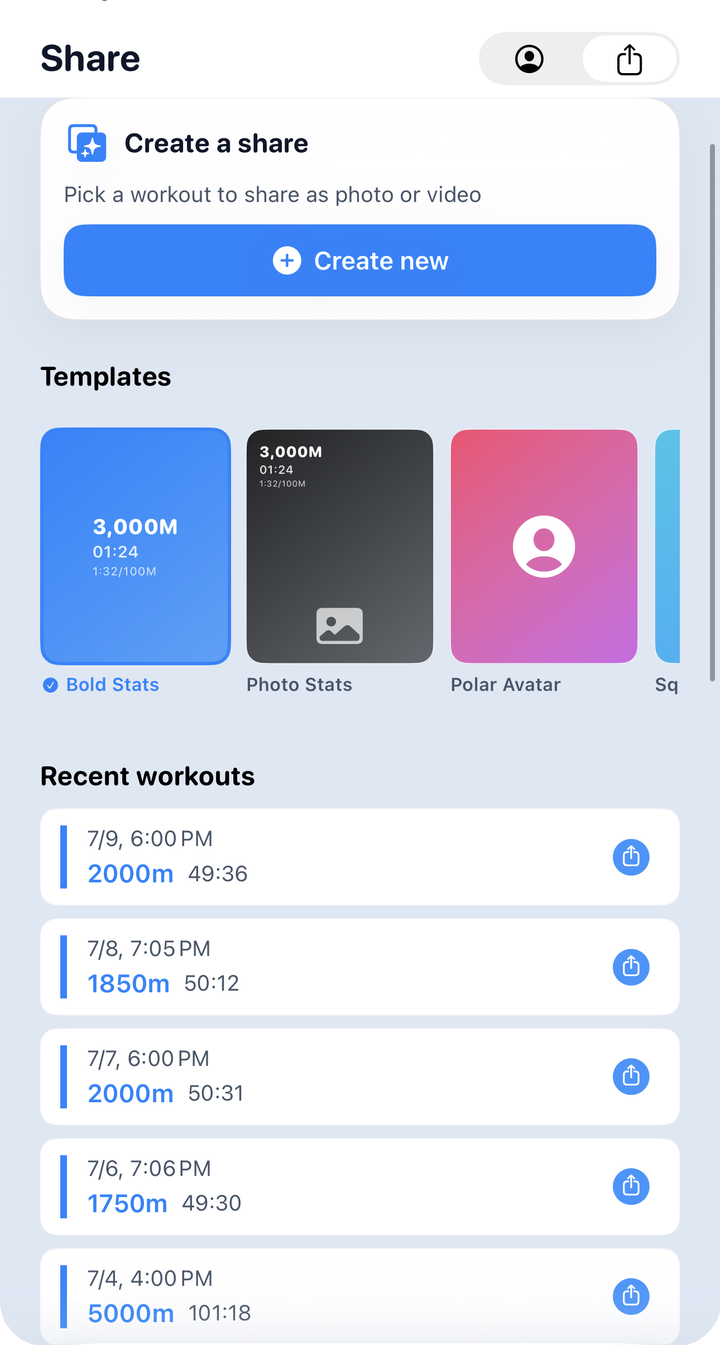
On the share main screen, pick one of the built-in templates, then adjust the background and stat chips to taste.
What to look for on this screen: - Create new, a Templates gallery, and a Recent workouts list, in that order. - There are six built-in templates (Bold Stats, Photo Stats, Polar Avatar, Square Stats, Story Vertical, Lap Focus), each with its own default aspect and background mode.
| Template | Background | Aspect |
|---|---|---|
| Bold Stats | Avatar (solid) | 1:1 |
| Photo Stats | Photo + avatar | 4:5 |
| Polar Avatar | Avatar | 1:1 |
| Square Stats | Avatar | 1:1 |
| Story Vertical | Photo + avatar | 9:16 |
| Lap Focus | Avatar | 1:1 |
Choosing a template builds a nicely styled card right away, and from here you can switch background mode again (avatar only / photo·video / photo·video + avatar).
The editor splits into four tabs — Layout / Photo / Theme / Motion (Photo is hidden when the background mode is avatar-only).
- Displayed stats: choose up to 6 of 12 available stats (distance, time, pace, and more).
- Color themes: 15 options (Default, Silver, Gold, and more).
- Photo filters: 6 options (none, vivid, warm, cool, mono, fade).
- Motion (text animation for video): 19 styles.
- Badges: up to 2 of 3 (PB, streak, distance milestone) can show on a card.
Whatever layout you build can be saved as your own preset and reused later.
3. Session video · My Avatar
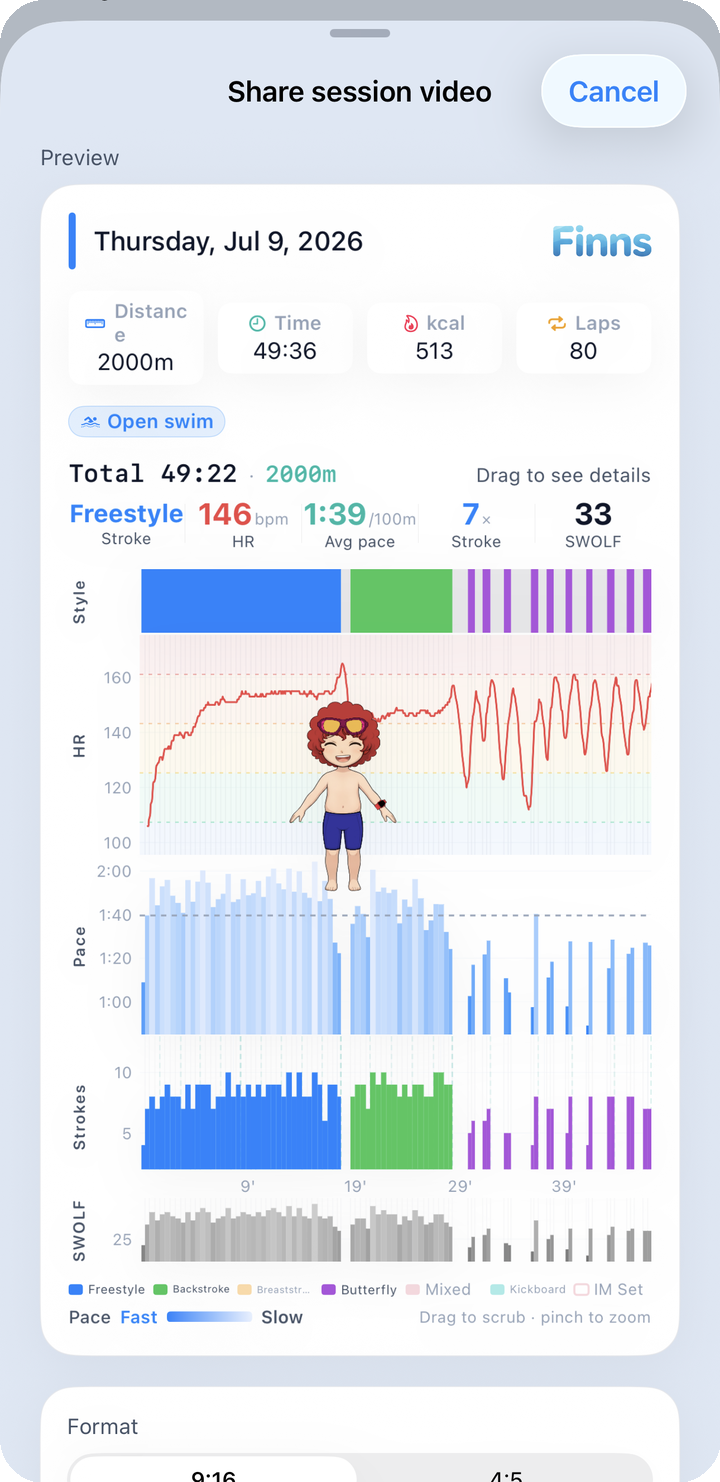
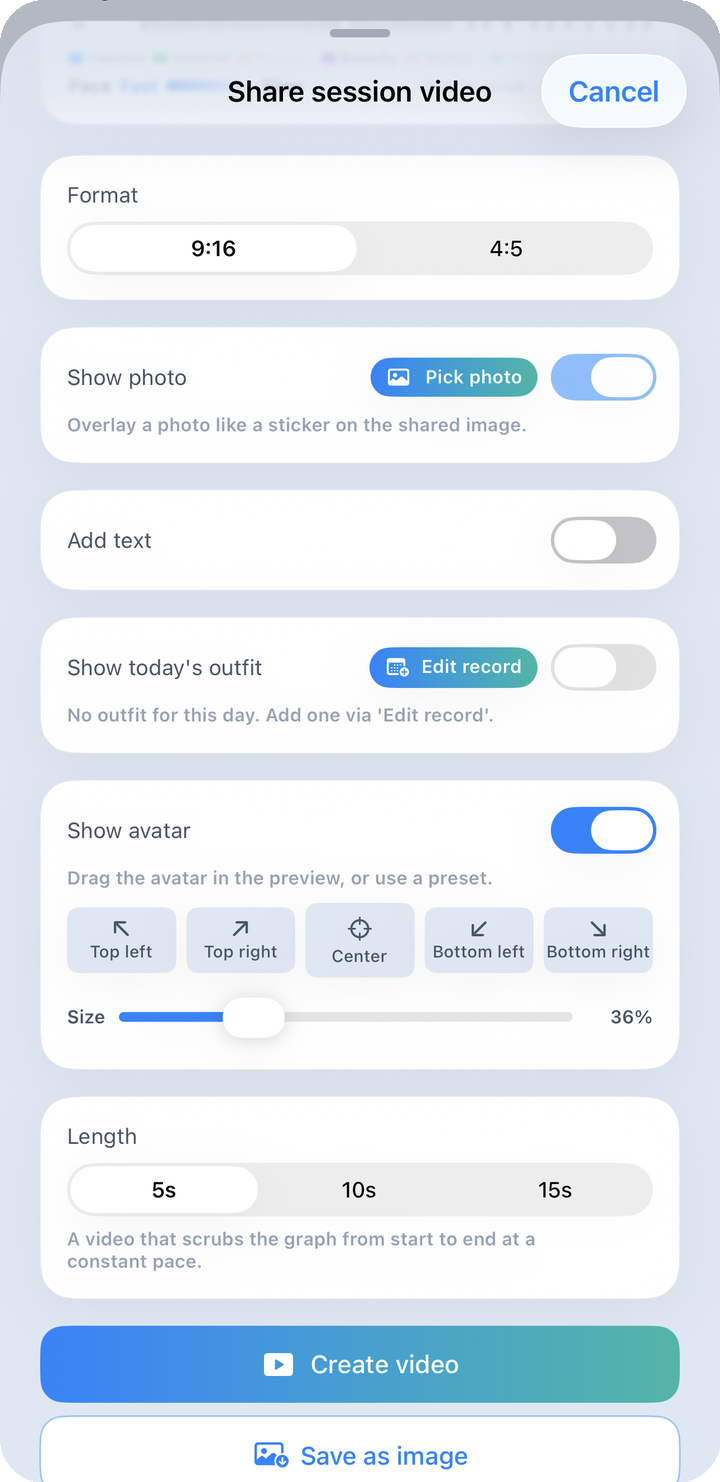
Session video doesn't depend on your avatar character at all — it's an independent feature that turns your swim graph into a short video as it draws. Add the avatar as an overlay if you want it in the frame.
The screen title reads Share session video, followed by Length and Format options.
- Only two aspect ratios exist — 9:16 and 4:5 (no 1:1 option). The picker itself just shows the numbers, but roughly speaking, 9:16 suits Instagram Stories/Reels-style full-screen vertical posts, while 4:5 (1080×1350) suits a feed post.
- Length is a choice of 5 / 10 / 15 seconds.
The My Avatar screen lets you pick which day's workout to use (today / yesterday / 2 days ago / 3 days ago), the aspect ratio, and lap visualization (none / lap zigzag / heart rate / both).
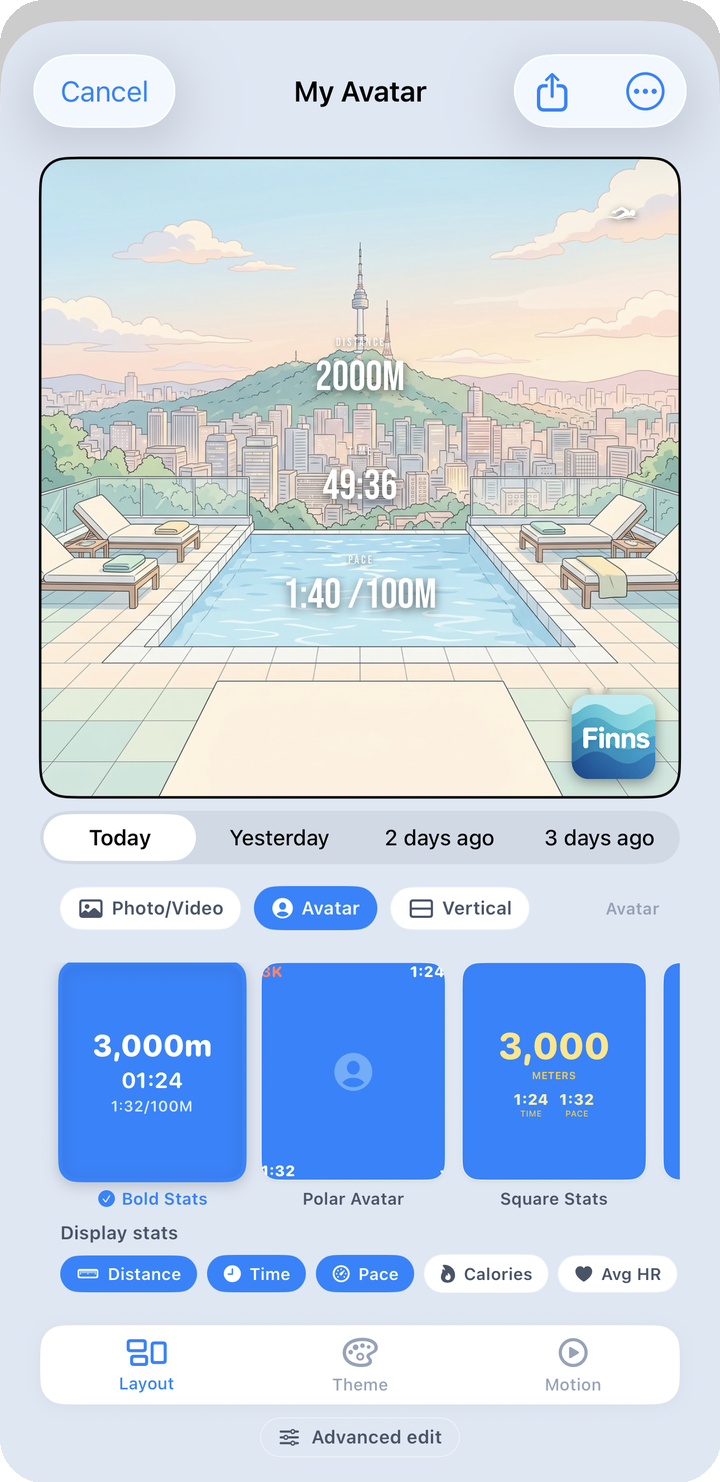
Choose lap zigzag and you can fine-tune the zigzag shape, wave intensity, and neon color family.
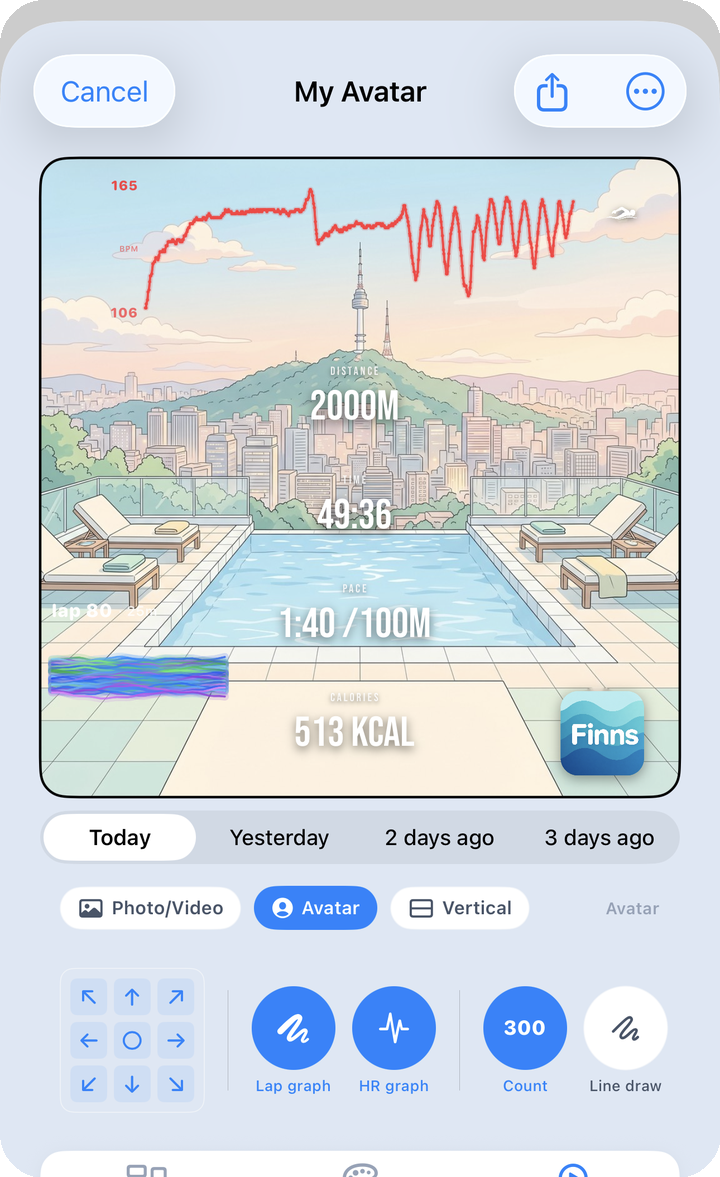
Overlays let you add a photo (background removal optional), text, today's outfit, and the avatar itself, each toggled with Remove background, Add text, Show today's outfit, and Show avatar switches.
Tap Create video to start the export. When it's done, you'll see "Video ready" along with a Save as image button. The finished video saves to your photo library and can go out through the system share sheet or straight to Instagram via "Share to Instagram Stories." There's no separate watermark — the only branding is the Finns logo baked into the card design itself.
4. Weekly · monthly · yearly reports
Report cards summarize a week, month, or year of swimming as stats on a card. All three are available from the Analysis tab; the History tab calendar only opens the monthly report directly.
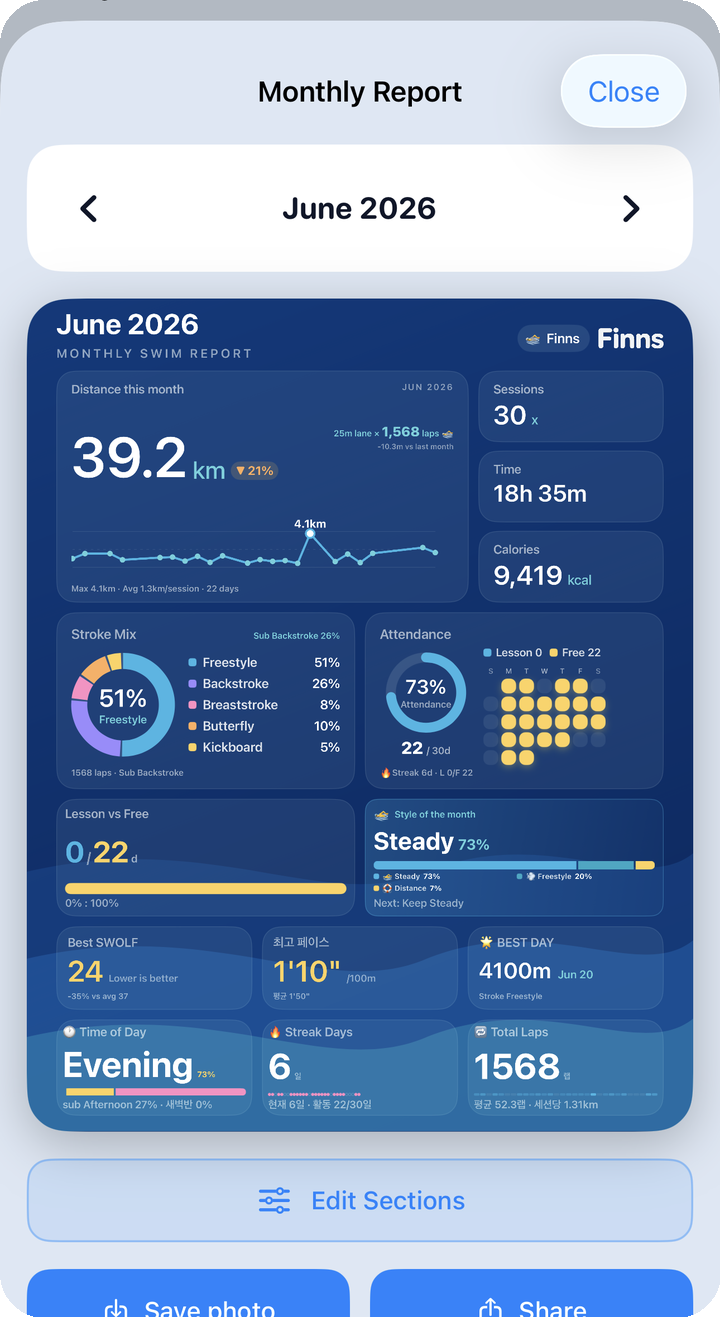
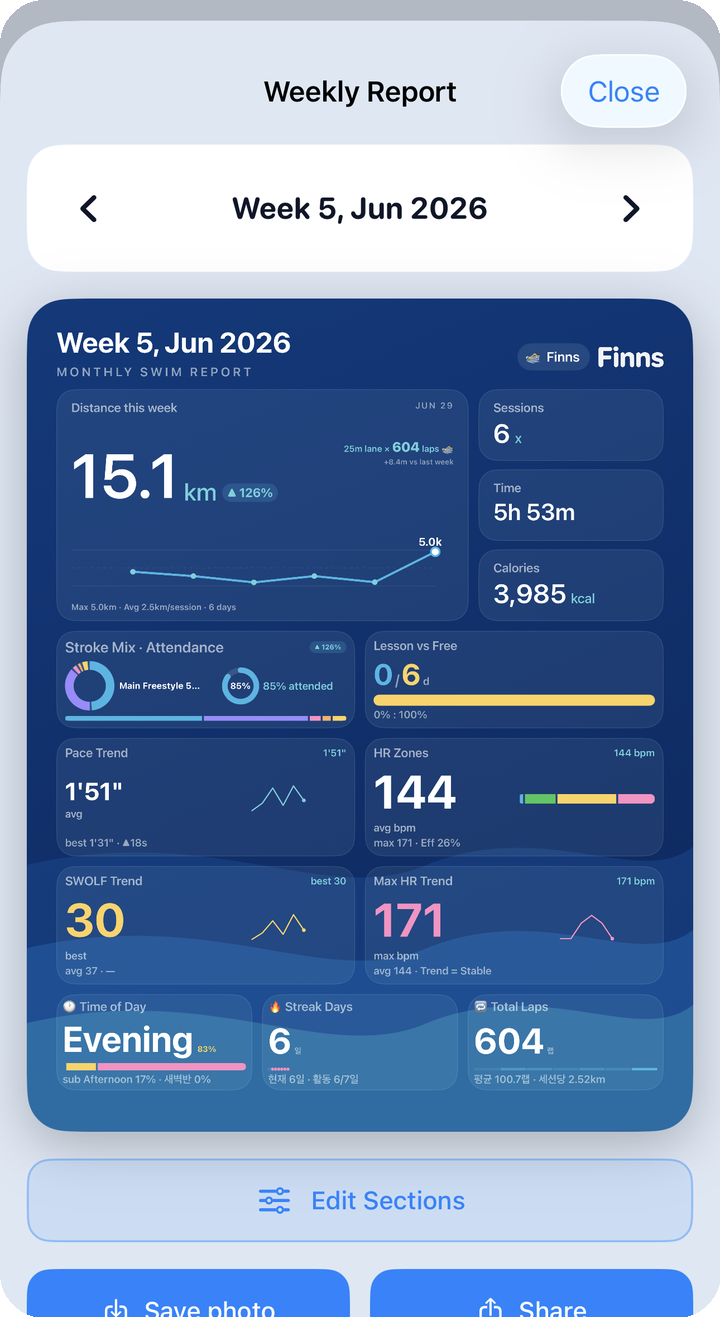
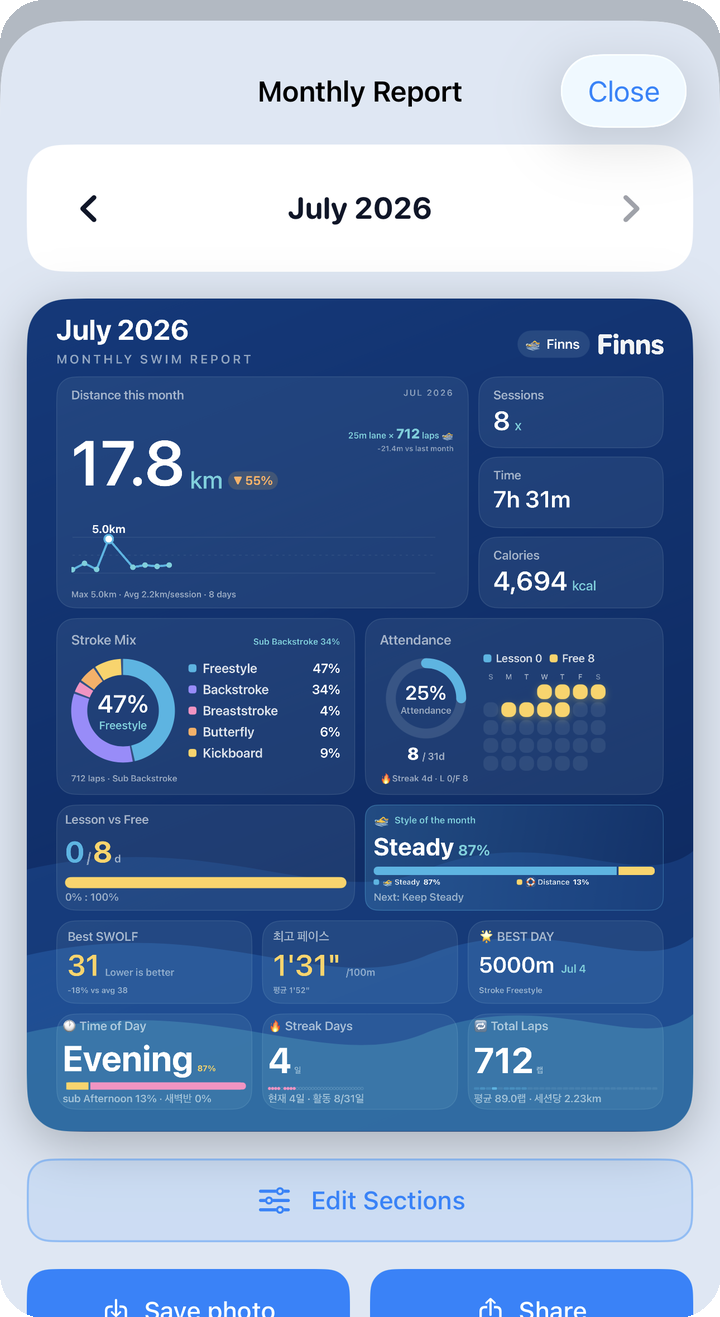
Use the weekly report to check this week's trend at a glance, the monthly report (also reachable from the calendar) to look back on a full month, and the yearly report to sum up how things changed over the year.
At the bottom of the report screen, Save photo and Share buttons sit side by side, so you can save the report as an image or share it directly.
Edit sections
Edit Sections lets you decide which stats show on a report, and how big each one is.
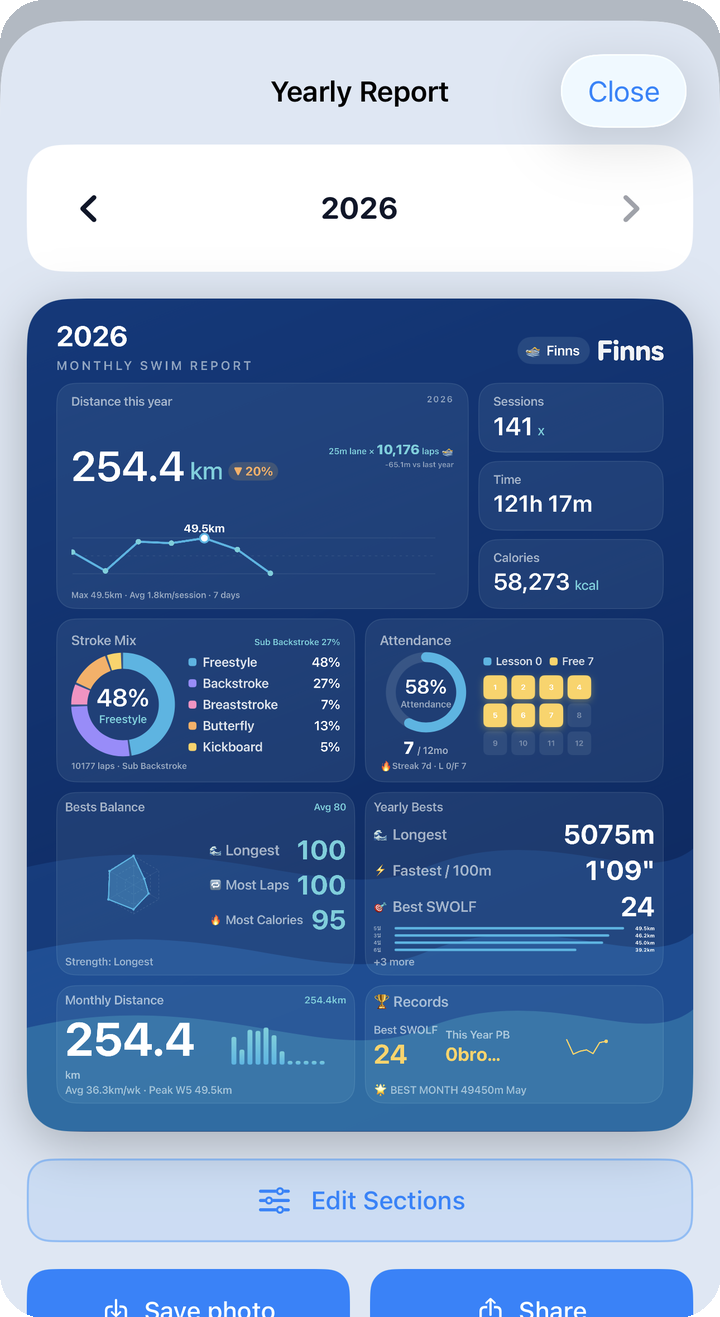
Drag widgets to reorder them, and pick a size for each — Long / Big / Small. Arrange something taller than the card can hold and the app will reject it with a notice, so build a combination that actually fits.
Next: Gear closet